
Trust & transparency
Evidence & disclosures
Not yet classified. This article has not yet been classified under the current editorial standard. It may predate the policy; do not assume a product was owned, tested, supplied, or independently verified unless the article says so.
Linked references: 11 explicit sources in the article.
How to Set Up ChatGPT for Better AI Chats
In the beginner AI post, the big idea was simple: the tools are here, and the real challenge is imagination.
This is the next step.
Once you get comfortable asking ChatGPT basic questions, the real improvement does not come from finding one magic prompt. It comes from setting up the conversation properly. The model choice matters. The context matters. The tool you turn on matters. The difference between a decent chat and a genuinely useful workflow is often whether you gave ChatGPT the right room to work in.
That sounds more complicated than it is.
Think of ChatGPT like a very capable assistant sitting at a desk with different tools available. Sometimes you only need a quick answer. Sometimes you need careful reasoning. Sometimes you need it to read files, search the web, use connected apps, build a spreadsheet, write a draft, or keep checking something later.
If you ask every task in the same way, you will get uneven results. If you set up the chat intentionally, it gets much better.
This guide is not a beginner "what is AI?" article. It is a medium-level setup guide for people who already know the basics and now want to use ChatGPT with more control.
Start With The Job, Not The Model
The most common mistake is opening ChatGPT and immediately wondering which model is "the best."
That is the wrong first question.
The better first question is:
What kind of work am I asking ChatGPT to do?
Before choosing a model or feature, sort the task into one of these buckets:
- Quick response: summaries, rewrites, simple explanations, brainstorming, basic email drafts.
- Careful thinking: planning, comparing options, debugging, strategy, math, technical decisions, long outlines.
- Source-backed research: current information, product comparisons, market research, citations, policy or technical documentation.
- File work: PDFs, spreadsheets, images, transcripts, notes, exports, resumes, reports.
- Ongoing work: reminders, recurring checks, monitoring for changes, weekly summaries.
- Action work: using connected apps, drafting or sending messages, organizing files, working with calendars, building decks, updating spreadsheets.
- Reusable work: the same style, process, or checklist you want ChatGPT to repeat over and over.
That classification tells you what to use.
For example, a quick rewrite does not need the heaviest reasoning mode. A legal, financial, medical, or technical research question should probably use web search or deep research with citations. A repeated workflow might belong in a project or custom GPT instead of a one-off chat. A task that touches email, calendars, files, or money needs extra permission and privacy judgment.
The model is part of the setup. It is not the whole setup.
Choosing A ChatGPT Model Without Overthinking It
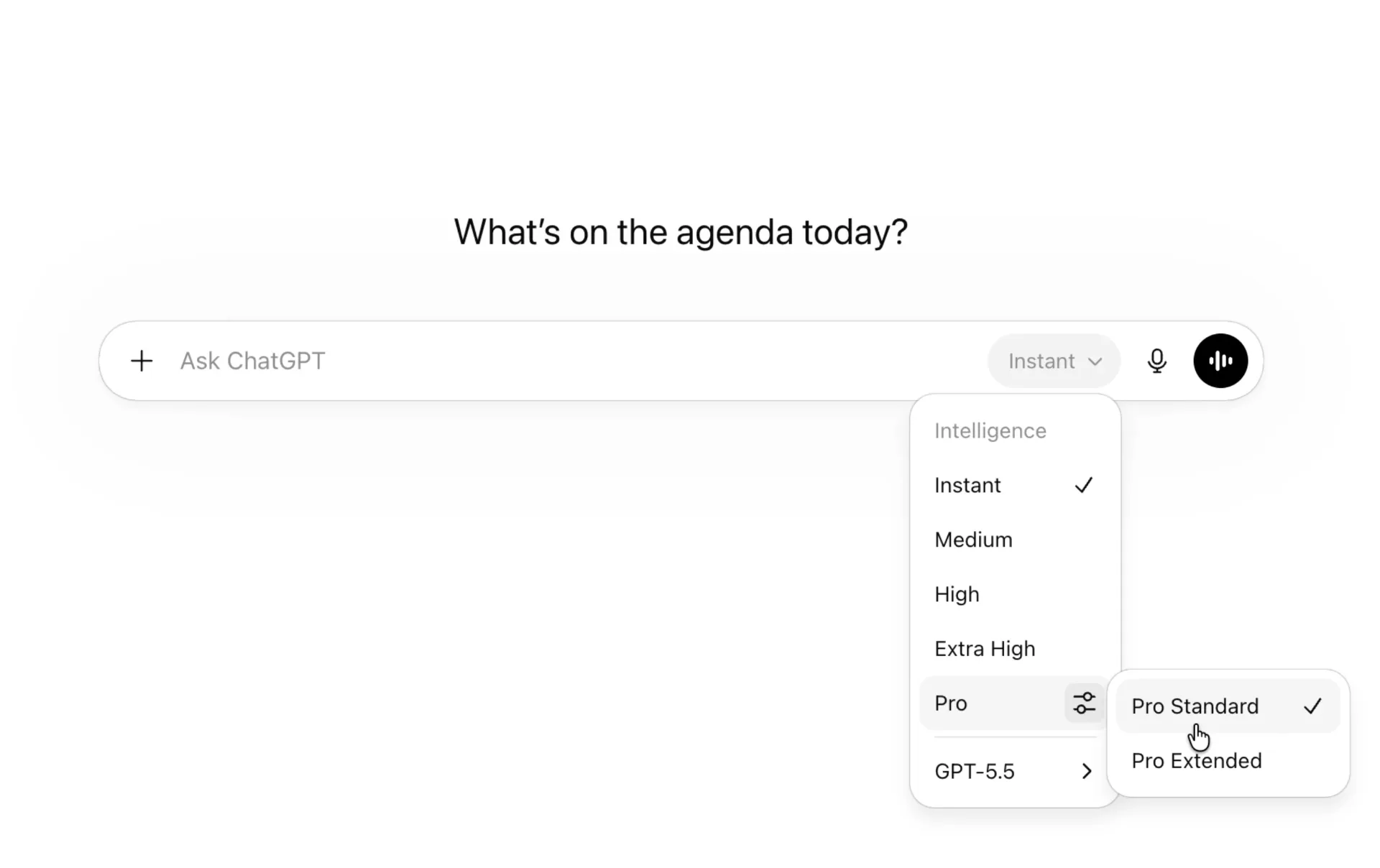
OpenAI changes model names and model availability over time, so I would not build a whole workflow around memorizing exact labels. As of OpenAI's June 2026 ChatGPT release notes, the model picker has been simplified around choices like Instant, Medium, High, Extra High for Pro plans, and Pro modes for Pro users. The point of the change is easier selection: choose the balance of speed and reasoning effort that fits the task.
That is a better mental model anyway.
Here is the practical version:
- Use Instant for fast everyday help: rewriting a paragraph, summarizing notes, brainstorming names, explaining a simple idea, or drafting a short reply.
- Use Medium when the answer needs structure: outlines, decisions with tradeoffs, planning, troubleshooting, or comparing options.
- Use High when mistakes are expensive or the task has multiple moving parts: technical debugging, business planning, detailed research synthesis, data-heavy reasoning, or complex writing.
- Use Extra High or Pro modes when available for the hardest tasks: deep strategy, complex analysis, difficult coding, dense documents, or work where you want the model to slow down and reason more carefully.
The highest setting is not always the best setting. It can be slower, more expensive in usage limits, and unnecessary for simple work. The trick is to match the model to the friction of the task.
One useful workflow is to start fast, then escalate:
- Ask Instant or Medium for a first-pass outline.
- Move to High for critique, risks, missing details, or a more careful version.
- Use deep research or web search only when the answer depends on current or verifiable sources.
- Use agent mode only when the work requires multiple steps, tools, websites, apps, files, or actions.
That keeps you from burning heavy tools on light jobs.
Set Up Your Default Context
ChatGPT gets better when it knows what you consistently want.
There are three main layers of context to understand:
- Custom Instructions: your global preferences.
- Memory: useful details ChatGPT can carry forward.
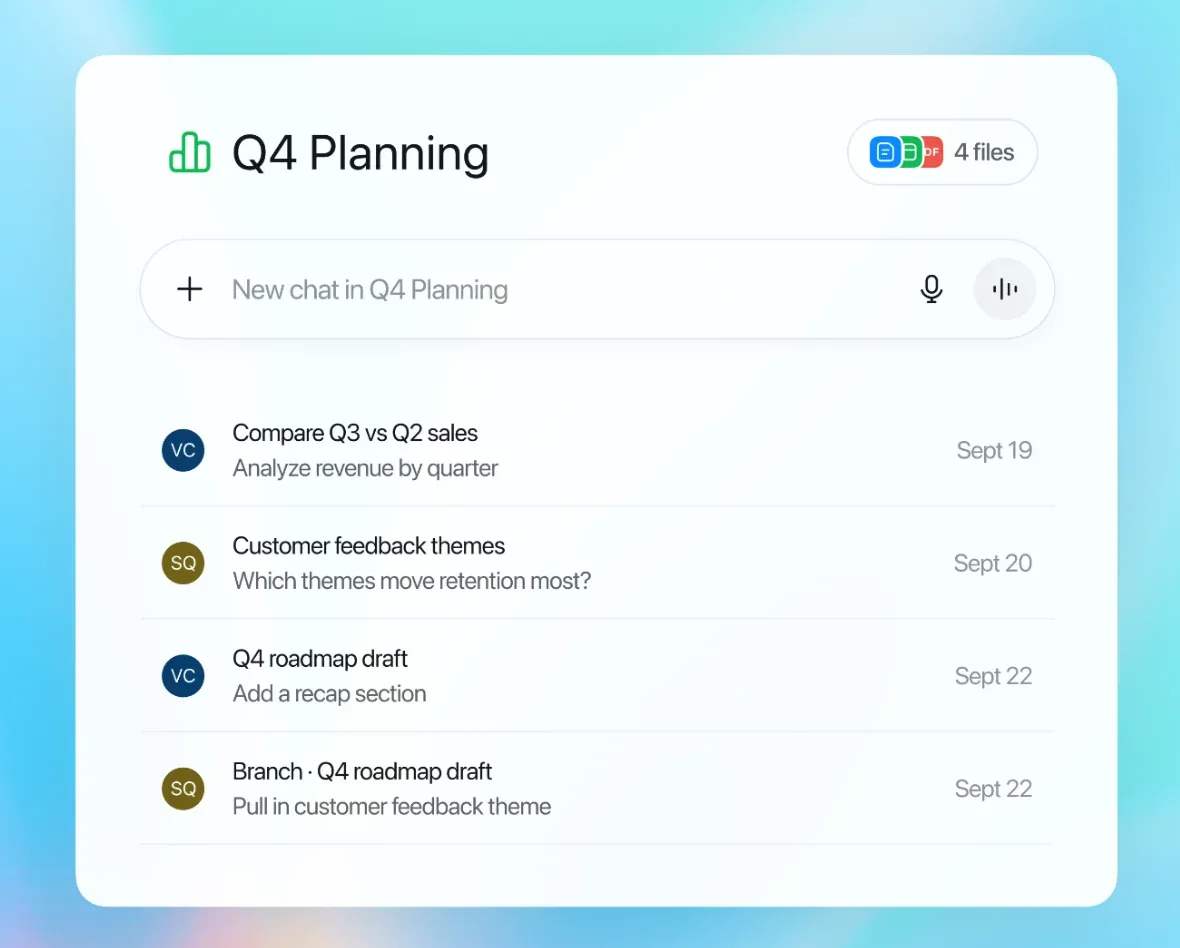
- Projects: a dedicated workspace for a specific topic, goal, or body of files.
Custom Instructions are the broadest layer. OpenAI's Help Center describes them as a way to tell ChatGPT what to consider in responses, and they apply across chats. This is where you put stable preferences like tone, formatting, your role, how technical you want answers to be, or how you like drafts structured.
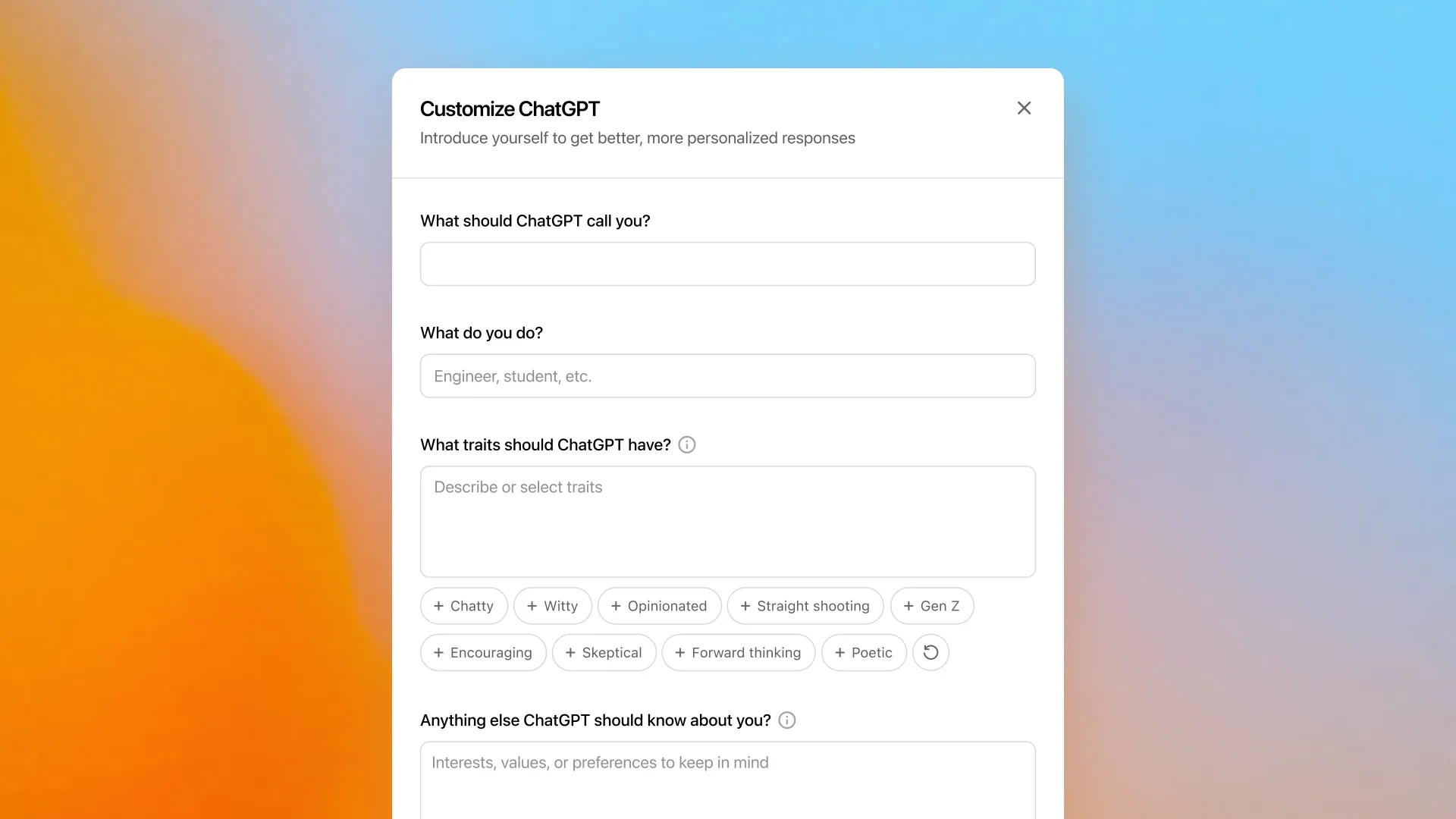
Good Custom Instructions are short and practical:
I am [your name here], an [your job title] and personal blogger.When helping with blog posts, use a grounded, practical, lightly funny voice.Prefer clear sections, short paragraphs, and source links for factual claims.When the task is technical, explain tradeoffs and give concrete next steps.Ask clarifying questions only when the missing detail would materially change the answer.
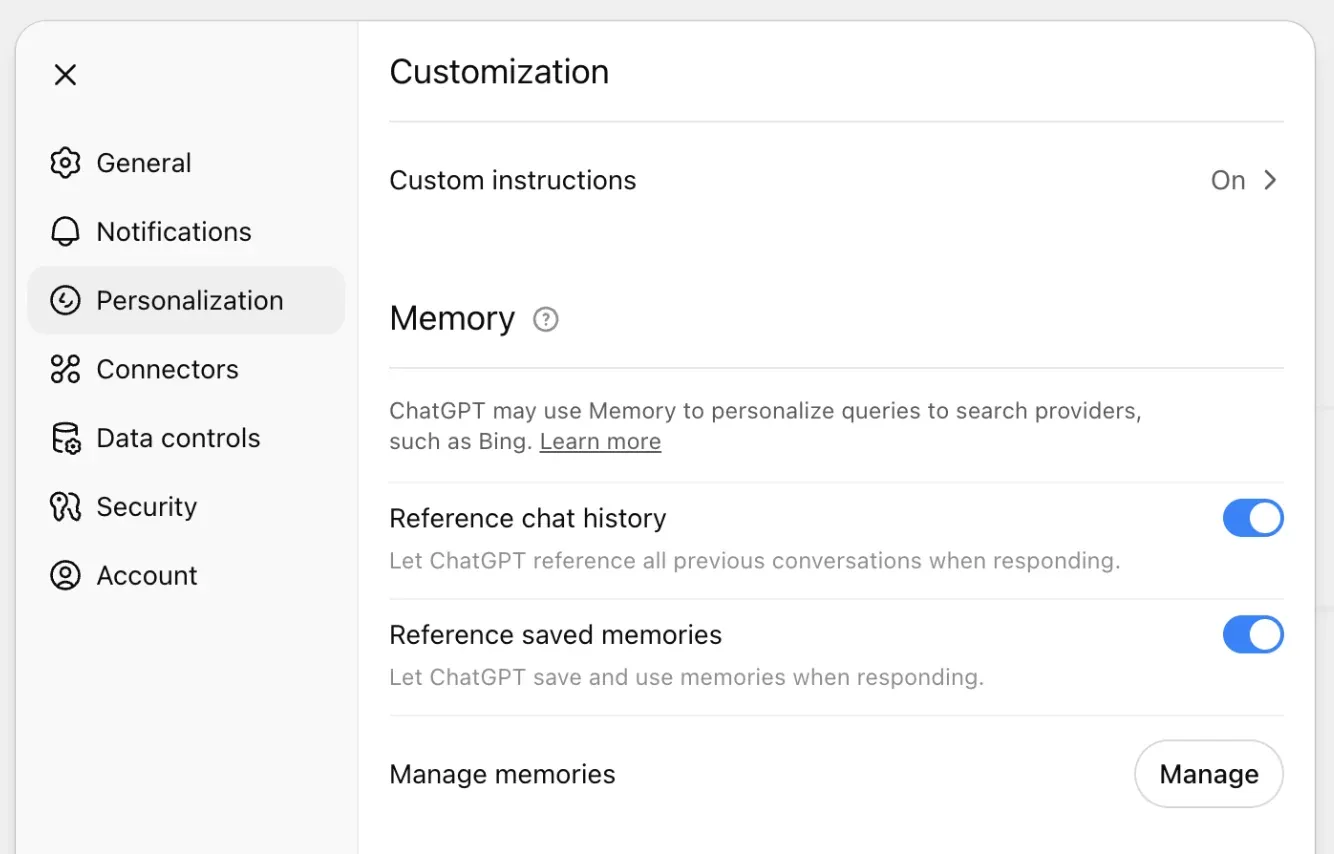
Memory is different. Memory lets ChatGPT personalize responses based on things it has learned or saved over time. OpenAI's Memory FAQ says users can manage memory in settings, delete memories, turn memory off, or use Temporary Chat when they do not want a conversation to use or create memories.
Memory is helpful for stable preferences:
- Your writing style.
- Your recurring projects.
- Your dietary preferences.
- Your profession.
- Your usual tech stack.
- Your preferred tone.
Memory is not the place for sensitive details you do not actually want retained. If the chat involves private medical, financial, legal, family, work, or credential information, pause before sharing it. Use Temporary Chat when the conversation should not affect future personalization.
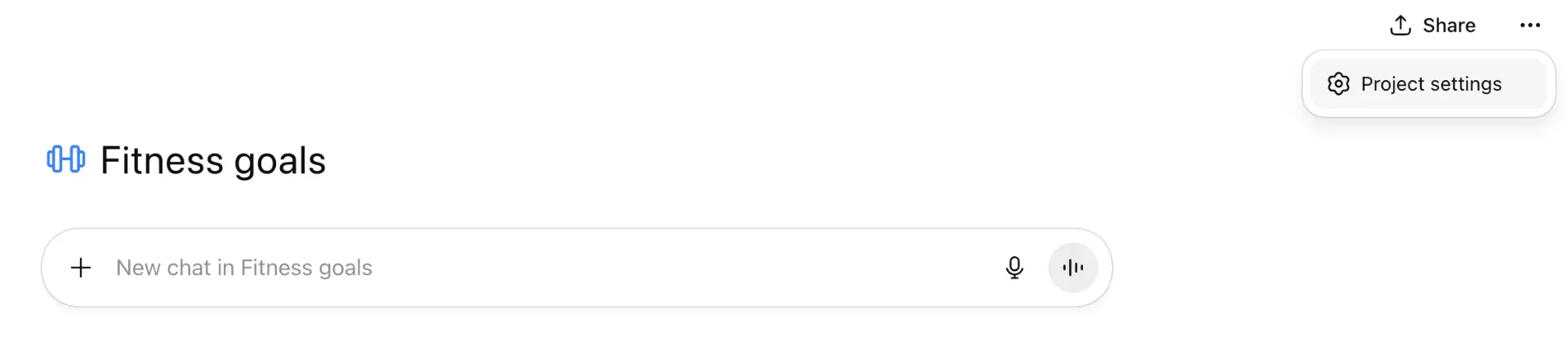
Projects are the focused workspace layer. A ChatGPT project can have its own instructions, files, sources, shared context, and project memory. OpenAI's Projects documentation notes that project instructions apply inside that project and override global custom instructions. That is useful.
Think of it this way:
- Custom Instructions: how I generally like to work.
- Memory: useful things ChatGPT should remember about me.
- Project Instructions: how this specific project should behave.
- Current Prompt: what I want right now.
That stack is much cleaner than trying to cram your whole life into every prompt.
Use Projects For Serious Work
If a task will take more than one chat, make a project.
Projects are especially useful for:
- Blog post series.
- Research projects.
- Business planning.
- Coding help.
- Health tracking notes.
- Trip planning.
- Course or study material.
- A YouTube/video workflow.
- A recurring weekly review.
For example, if I were setting up a project for this AI article series, I would create a project called AI Chat Articles and add project instructions like this:
Purpose:Help draft practical, source-backed articles about AI tools for non-expert readers who want to become more capable.Voice:Personal, grounded, useful, lightly funny, and not corporate.Rules:- Prefer official documentation for product claims.- Clearly separate opinion from sourced facts.- Include screenshot suggestions when a UI step would help.- Keep explanations practical.- Do not oversell AI as magic.Output:Use blog-ready Markdown with title, excerpt, headings, source links, and image direction.
That beats re-explaining the whole writing style every time.
Projects also let you upload or attach relevant files. For this series, that might include the beginner post, rough notes, screenshots, a style guide, and a list of future article ideas. Then every chat in the project can draw from that context.
One caution: OpenAI's Scheduled Tasks documentation says that if you create a task in a project that has files, the task will not be able to access those project files. So if you schedule recurring work, do not assume it can see everything in the project. For recurring article research, I would make the scheduled task prompt self-contained and include the exact sources or websites to check.
When To Create A Custom GPT
Projects are great for a topic. A custom GPT is better for a repeatable behavior.
OpenAI's GPT builder documentation describes GPTs as configurable versions of ChatGPT with instructions, knowledge files, capabilities, apps or actions, and a recommended model. You can build one conversationally or configure it directly.
Use a custom GPT when you want a reusable tool, not just a single conversation.
Good examples:
- A blog editor that always checks tone, structure, SEO, and source links.
- A recipe helper that follows your diet and pantry preferences.
- A coding reviewer for a specific stack.
- A study tutor for a class.
- A proposal generator for a business workflow.
- A support FAQ assistant trained on your docs.
Do not create a GPT just because a prompt got long. If you only need the setup once, keep it in the chat. If you need the same setup every week, make it reusable.
The important GPT setup fields are:
- Name: clear enough that you know what it does later.
- Description: who it is for and what work it helps with.
- Conversation starters: realistic prompts that show the intended use.
- Instructions: behavior, tone, steps, rules, examples, and what to avoid.
- Knowledge: reference files the GPT should use as source material.
- Recommended model: the model or reasoning level best suited to the work.
- Capabilities: things like web search, image generation, data analysis, Canvas, or apps, depending on availability.
- Actions: external APIs the GPT can call, when you need custom integrations.
One detail that matters: OpenAI recommends using knowledge files for reference material, not behavior rules. Put rules in the instructions. Put source material in knowledge.
That distinction saves headaches.
A Better Prompt Template
Even with projects, memory, and GPTs, the individual prompt still matters.
Here is a reusable structure that works well:
Context:[What is this about? Who is it for? What matters?]Goal:[What should ChatGPT produce?]Inputs:[Paste notes, files, links, constraints, or examples.]Output format:[Markdown article, table, checklist, JSON, outline, email, etc.]Standards:[Tone, length, source requirements, formatting, accuracy expectations.]Process:[Ask clarifying questions only if required. Otherwise make reasonable assumptions and proceed.]
For example:
Context:I am writing a medium-depth blog post for readers who understand basic AI chat but want to use ChatGPT more effectively.Goal:Create a practical article about setting up ChatGPT with model choice, custom instructions, projects, GPTs, apps, and agent mode.Inputs:Use official OpenAI documentation where possible. Mention that features vary by plan, region, and rollout.Output format:Blog-ready Markdown with headings, short paragraphs, examples, screenshot suggestions, and a source list.Standards:Keep it practical, grounded, lightly funny, and not hype-driven. Clearly explain when not to use heavier features.
That is much better than:
Write an article about ChatGPT.
The model cannot read your mind. It can work with what you give it.
Use Apps Carefully
OpenAI now uses the term Apps in ChatGPT for what many people previously called connectors. Apps can let ChatGPT search or reference external information, sync content, run deep research across connected sources, or take certain actions depending on the app.
This is powerful, but it changes the risk level.
If ChatGPT is only drafting a paragraph, the blast radius is small. If it can read your email, search your Drive, access Slack, work with GitHub, or take action in another service, you need to slow down.
OpenAI's Apps documentation describes permission options such as Always ask, Any changes, Important actions, and Never ask. Important actions can include things like sending messages, deleting content, changing sharing permissions, making purchases, or exposing sensitive information.
My default recommendation: keep approval prompts on for anything that can change the outside world.
Useful setup checklist:
- Connect only the apps you actually need.
- Review app permissions after connecting.
- Keep "ask before changes" enabled for work accounts.
- Disconnect apps you are not using.
- Do not connect sensitive accounts just to experiment.
- When using apps, say exactly what ChatGPT may and may not do.
- Watch carefully before approving any action.
Apps are where ChatGPT starts to feel less like a chatbot and more like an assistant. That is useful. It also means your judgment matters more.
When To Use Web Search, Deep Research, Or Agent Mode
These features sound similar, but they are not the same.
Use regular chat when the model can answer from general knowledge or from context you provide.
Use web search when the answer depends on current information and a few citations are enough. This is good for quick checks, recent updates, product pages, documentation, or basic source-backed answers.
Use deep research when you need a more complete research report. OpenAI describes deep research as an agentic capability that searches, analyzes, and synthesizes many online sources into a documented report. OpenAI also says deep research can work with apps or MCP sources and can restrict searches to trusted sites, which is useful when you want tighter source control.
Use agent mode when the work requires action across tools, websites, files, or apps. OpenAI's ChatGPT agent announcement describes it as using its own virtual computer, with tools like a visual browser, text browser, terminal, API access, and connected apps. It can do multi-step work, ask for clarification, and request permission before consequential actions.
A practical rule:
- Chat: answer, draft, explain, brainstorm.
- Web search: check current facts.
- Deep research: investigate and cite.
- Agent mode: do a multi-step task.
- Scheduled Tasks: remind, monitor, or repeat.
Do not turn on agent mode just because it sounds impressive. If a normal chat can do the job, use normal chat. Agent mode is for workflows, not every question.
Good agent-mode tasks might be:
- Compare competitors and create a slide outline.
- Pull data from a spreadsheet, analyze it, and summarize changes.
- Research travel options and prepare an itinerary.
- Review a set of source pages and build a cited report.
- Draft a weekly metrics summary from connected apps.
Bad agent-mode tasks:
- "Explain what CSS is."
- "Rewrite this paragraph."
- "Give me five blog title ideas."
- "What is a good dinner recipe?"
Sometimes the fancy tool is just a slower way to make a sandwich.
Scheduled Tasks And Monitoring
Scheduled Tasks are useful when the work should happen later or repeat.
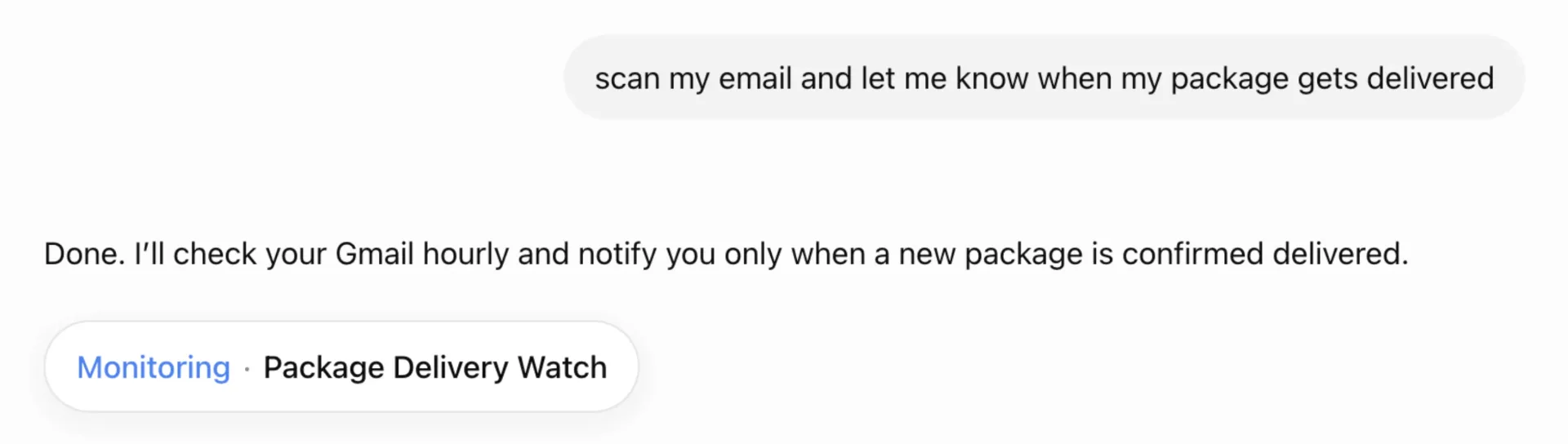
OpenAI's Scheduled Tasks documentation says users can create one-off or recurring tasks, ask ChatGPT to check for changes, and receive notifications when there is a meaningful update. Tasks can be created from the Scheduled page or by asking ChatGPT in a conversation.
Good task examples:
- "Every Monday morning, summarize AI product updates from official OpenAI documentation."
- "Remind me Friday afternoon to review my blog draft."
- "Check once a day whether this product page changes, and notify me only if the price drops."
- "Every Sunday, ask me for notes and turn them into a weekly planning draft."
There are limits. Active task limits vary by plan, and some features are not supported with tasks. So treat scheduled work like a lightweight assistant, not a fully autonomous employee.
Also write task prompts carefully. A scheduled task may run when you are not sitting there to clarify. Include the source, cadence, output format, and what counts as a meaningful update.
Example:
Every Monday at 9 AM, check the official OpenAI ChatGPT release notes and summarize only changes related to ChatGPT model selection, projects, memory, apps, deep research, agent mode, or scheduled tasks. Include links to the official pages and tell me if there were no relevant changes.
That is much better than:
Keep me updated on AI.
"AI" is the ocean. Give the assistant a shoreline.
Privacy Setup Before You Get Fancy
Before connecting apps, uploading files, or using agentic tools, check your privacy settings.
OpenAI's data-use Help Center article says individual services such as ChatGPT may use content to train models unless you opt out, while business products such as ChatGPT Business, ChatGPT Enterprise, and the API are not used for training by default. The same article says Temporary Chat does not appear in history, does not use or create memories, and is not used to train models.
OpenAI's chat and file retention documentation says chats are saved until deleted, deleted chats are scheduled for permanent deletion within 30 days unless exceptions apply, and files saved to Library are managed separately from chat deletion.
That gives you a simple checklist:
- Use Temporary Chat for sensitive one-off conversations.
- Turn off or review Memory if you do not want personalization.
- Do not upload private documents casually.
- Delete files from Library when you no longer need them.
- Review app permissions before using connected apps.
- Avoid pasting passwords, API keys, private tokens, or confidential client data.
- For work use, follow your company's AI and data policy.
The more capable the chat becomes, the more important boundaries become.
My Recommended Setup
If you are past the beginner stage, here is the setup I would use.
- First, set Custom Instructions for your general preferences. Keep them short. Include who you are, what kind of help you usually want, and how you want answers formatted.
- Second, turn Memory on only if you want personalization. Review what it remembers occasionally. Use Temporary Chat when the conversation should not carry forward.
- Third, create projects for work that has continuity. A blog series should have a project. A coding project should have a project. A research topic should have a project. Add focused project instructions so ChatGPT knows the style and standards.
- Fourth, use the model picker by task difficulty. Instant for fast work. Medium or High for planning, reasoning, and important drafts. Deep research for source-backed reports. Agent mode for multi-step work that needs tools or action.
- Fifth, make custom GPTs only for repeatable workflows. If you are doing the same thing again and again, turn the pattern into a GPT. If it is just one long prompt, keep it as a saved prompt or project instruction.
- Sixth, connect apps slowly. Add one at a time. Understand what it can read or change. Keep confirmations turned on for anything consequential.
That is enough to make ChatGPT feel dramatically more useful without turning your account into a maze of half-configured experiments.
Official Sources To Bookmark
- ChatGPT Release Notes
- ChatGPT Custom Instructions
- Memory FAQ
- Projects in ChatGPT
- Creating and editing GPTs
- Apps in ChatGPT
- Scheduled Tasks in ChatGPT
- Introducing deep research
- Introducing ChatGPT agent
- Chat and File Retention Policies in ChatGPT
- How your data is used to improve model performance
Final Thought
The better you set up ChatGPT, the less it feels like shouting into a magic box.
It starts feeling more like working with a capable assistant who knows the project, understands the tone, has the right tools on the desk, and knows when to ask before touching anything important.
That is the goal.
Not to use every feature.
To use the right feature at the right time, with enough context to get a result you would actually trust.