Trust & transparency
Evidence & disclosures
Not yet classified. This article has not yet been classified under the current editorial standard. It may predate the policy; do not assume a product was owned, tested, supplied, or independently verified unless the article says so.
Linked references: 13 explicit sources in the article.
There is something very appealing about a box that promises to turn a laptop, a pile of cables, and a slightly embarrassing desk into one neat connection.
Fourteen ports. Three displays. Enough charging power to make the old adapter feel underqualified.
Before I would spend money on any of that, I would want to finish one sentence: “The problem I need this dock to solve is ______.”
If the answer is “my monitor keeps disconnecting,” start there. If the answer is “I connect two monitors, Ethernet, a webcam, and a charger every morning,” a dock has a much clearer job.
Anker’s Prime Charging Docking Station A83B3 is an interesting example because its big feature list comes with some very real setup conditions. I compared its documentation with Plugable’s UD-ULTC4K, CalDigit’s TS4, and Kensington’s SD5000T5 EQ to see what those differences mean at an ordinary desk.
This is a researched buying guide, not a hands-on review. I have not tested these four docks. Specifications below are manufacturer claims checked September 21, 2026; screenshots show the manufacturers’ websites, not my equipment. The useful experiment here is one you can do with the laptop and monitor you already own.
Start with two photos and one sentence
Photograph the ports on your laptop and the input labels on your monitor. Then write down the exact laptop model, including its chip or generation, and the monitor’s model number. Keep serial numbers out of anything you share publicly.
“MacBook” and “Dell laptop” are a little too vague for this job. So is “it has USB-C.” A connector’s shape does not tell you every feature behind it. Plugable’s explanation of USB-C Alt Mode shows why the manufacturer’s port specification matters: video support has to be there, too.
Now name the irritation. One flaky adapter? Too many things to unplug? A charger that cannot keep up? A second screen that only mirrors the first? Each answer leads to a different purchase—or a different test before buying anything.
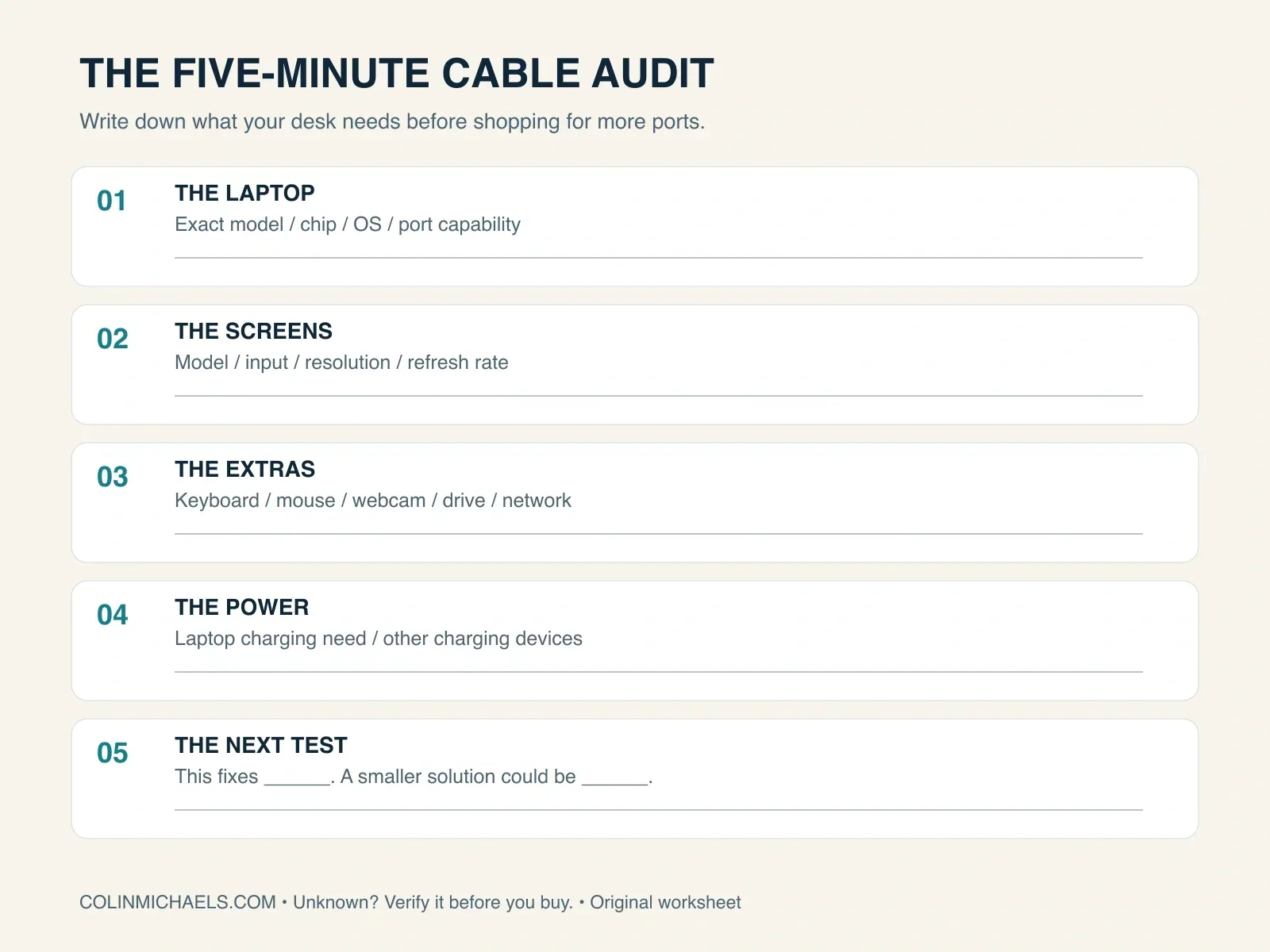
The five-minute cable audit
Treat this as a first pass. If a specification is hard to find, write “unknown” and investigate that one item before ordering.
Minute 1: Identify the laptop
Record the model, operating system, and the port you intend to use. Look for the manufacturer’s wording about USB-C video, Thunderbolt, USB4, and charging. For a work or school laptop, add one more question: are you allowed to install display software?
Minute 2: Identify the screens
For each monitor, record its model, available input, and the resolution and refresh rate you actually want. Resolution is the size of the picture in pixels; refresh rate is how often it updates. “One 4K screen at 60Hz” is a useful target. “The best possible picture” is a shopping trap with excellent lighting.
Also decide whether you want separate desktops or the same picture on every screen. Ask for extended displays when you want different windows on different monitors.
Minute 3: Count what stays plugged in
List the keyboard, mouse, webcam, microphone, external drive, network cable, and memory cards you genuinely use. Count their connectors. A spare port is pleasant; buying several imaginary future accessories to justify a dock is less convincing.
Minute 4: Check the charging job
Read the wattage on your normal laptop charger and check what the laptop accepts through USB-C. Then list anything else you expect the dock to charge. A phone charging beside the laptop can matter when a dock shares its power budget.
Do not confuse the rating of a dock’s power supply, its total output, and the power available to your laptop. Those are different numbers.
Minute 5: Choose the smallest sensible experiment
Write down the simplest possible fix and how you will judge it. If the monitor cuts out, test a known-good compatible cable or another supported input first. If everything works but connecting six things is annoying, compare docks. If you only need one screen and charging, include a simpler hub—or the monitor’s own supported USB-C charging connection—in the comparison.
Here is a hypothetical example: a student uses one HDMI monitor, a wireless mouse, and a laptop charger. The display works, but the HDMI adapter occasionally loses its connection. That situation does not establish a need for triple displays. It establishes a reason to isolate the bad connection.
Change the example to a shared desk with three office monitors, wired networking, a webcam, and daily laptop swaps, and the larger dock starts earning its space. That is the distinction I would make before looking at the shiny knob.
What DisplayLink means in normal language
DisplayLink uses software on the computer to help create extra screens. It sends display information over USB to hardware in the dock, which outputs it to the monitor. It is a different route from a conventional connection driven directly by the laptop’s graphics hardware. Synaptics explains the process here.
That can be useful when you need additional office screens, but the software becomes part of your setup. A dock with DisplayLink on the box should prompt a software-compatibility check before checkout.
On a Mac, DisplayLink Manager needs permission to access screen pixels. The permission is called Screen Recording; DisplayLink says those pixels are sent to the connected device over USB and are not transmitted to Synaptics or third parties. That is the vendor’s explanation, not an independent privacy audit. DisplayLink’s current setup guide explains the permission and background activity requirements.
Use the dock manufacturer’s support link or the official DisplayLink download page. Match the download to your operating system and review the requested permissions. On a managed computer, have IT confirm that the setup is supported. If that approval is unavailable, eliminate software-dependent options from your shortlist.
Four docks, four different reasons to buy
These are established product lines from familiar dock brands, selected for useful differences rather than a sales ranking. The two DisplayLink choices are the Anker and Plugable. The two native-display alternatives are the CalDigit Thunderbolt 4 and Kensington Thunderbolt 5 models. Their headline display counts are conditional, not interchangeable promises.
Manufacturer sources: Anker support, Anker manual, Plugable product and compatibility guide, CalDigit TS4 specifications, and Kensington SD5000T5 EQ. Kensington’s installation guide shows its separate power adapter. Maximum display modes depend on the whole connection, including the laptop, operating system, monitors, cables, and software.
Anker Prime A83B3: the charging-focused desk box
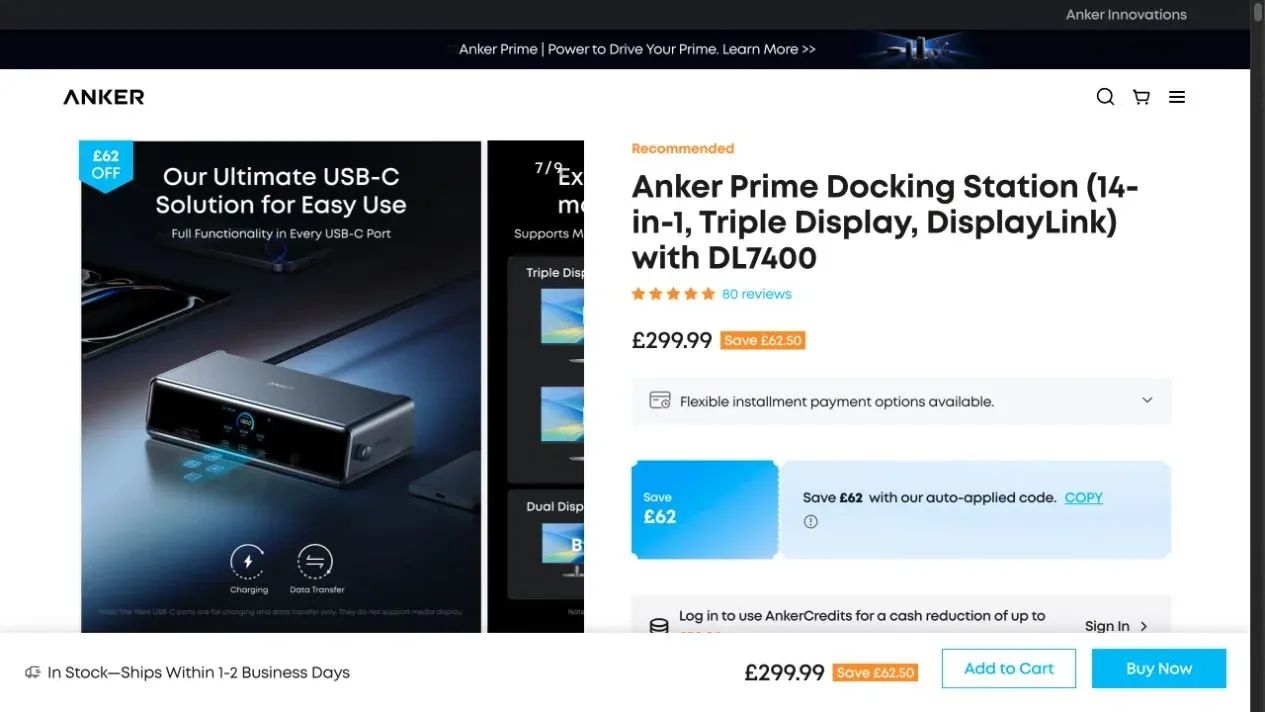
First, a correction to the usual “another power brick” complaint: this Anker has an integrated power supply. It still needs a wall cord. The front display, control knob, active cooling, and power monitoring distinguish it from a plain hub. Anker’s product page describes those features.
The practical catches are more important than the screen on the dock: its front USB-C ports cannot output monitor video, and the two HDMI outputs and DisplayPort need DisplayLink software. Anker lists Windows 10/11 and macOS 13.5 or later. Use its included host cable and verify your laptop’s USB-C capabilities. Anker support and the manual cover those requirements.
There is a documentation conflict: the support page says to leave all front USB-C ports unused for 140W laptop charging, while the UK product page allows one connected front device. Both require PD 3.1. Until Anker confirms your exact combination, budget conservatively and test charging with your usual accessories attached. The manual also warns that proprietary laptop charging protocols can limit third-party charging.
The manual advertises a triple-screen ceiling of two 4K/60 HDMI displays plus one 8K/60 DisplayPort display. That is a maximum configuration, not a reason to buy an 8K screen. It also lists one front USB-C port at 5Gbps where the support summary describes all three as 10Gbps. If that speed matters to your storage workflow, ask Anker to resolve it before purchase.
Plugable UD-ULTC4K: flexible monitor plugs, with a third-screen condition
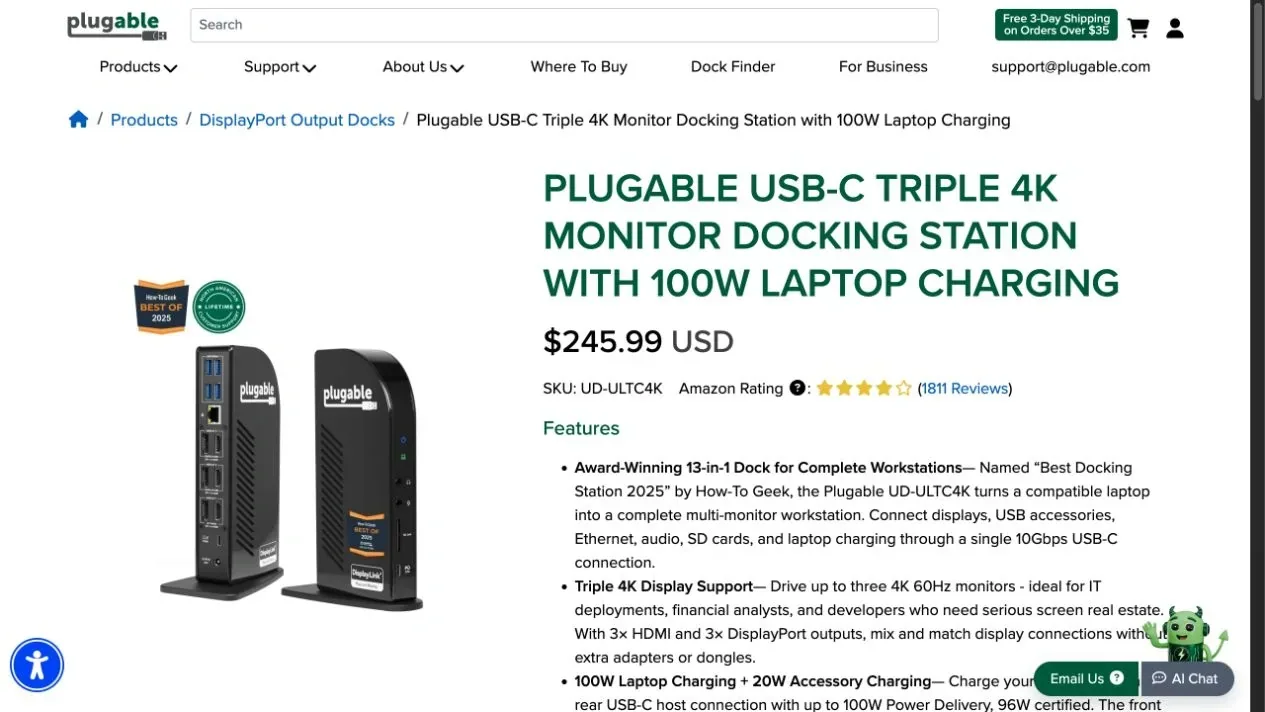
Plugable gives each of three display groups an HDMI/DisplayPort choice; six sockets do not mean six monitors. Two groups use DisplayLink, while the third requires native USB-C video support. Its compatibility notes specify DP 1.4 or better for all three at 4K/60; a DP 1.2 host reduces the native screen to 4K/30. It also explicitly says HDCP protected-content support is absent. Check the exact configuration here.
I would shortlist it for an office desk with existing HDMI and DisplayPort monitors. I would be much less enthusiastic if the plan were to make it the family’s trouble-free streaming hub.
CalDigit TS4: a useful two-screen alternative
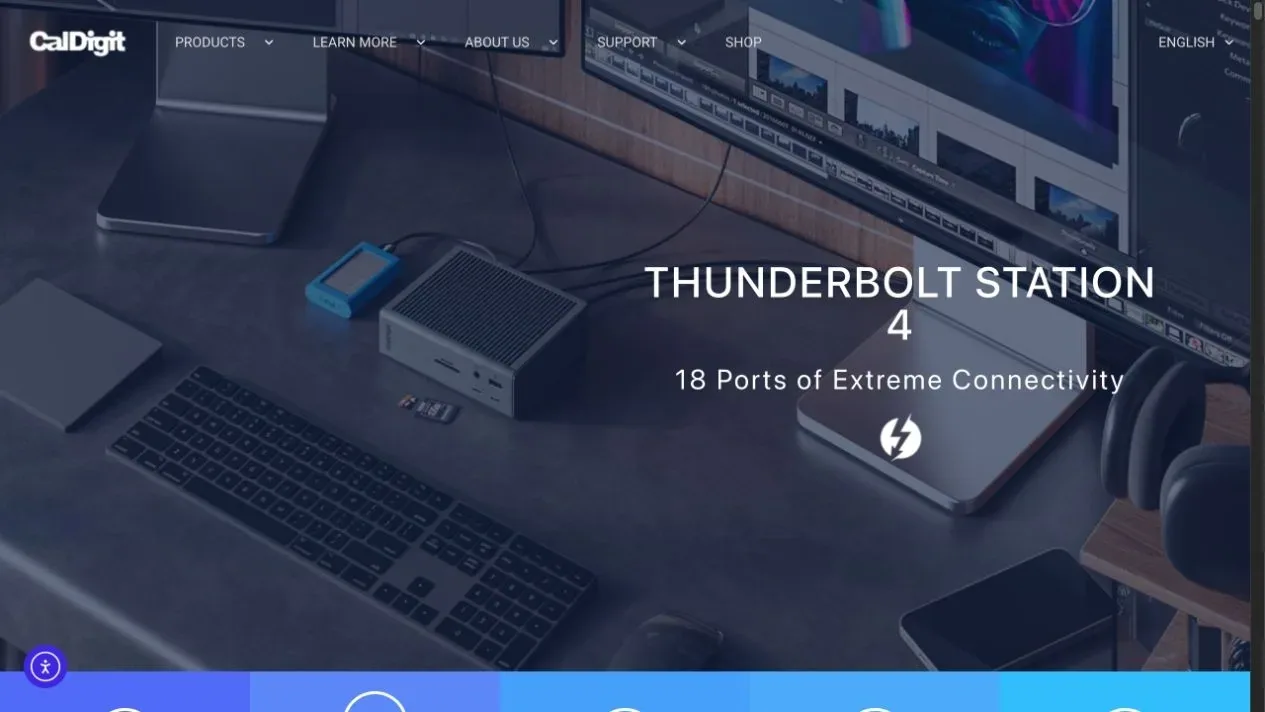
The TS4 uses native Thunderbolt display output rather than DisplayLink. Connect monitors through DisplayPort or the downstream Thunderbolt ports; HDMI screens may need adapters. Its ordinary USB-C accessory ports are not video outputs. It does not override the laptop’s native display limit—base M1/M2 MacBooks, for example, do not become dual-display machines through this dock. CalDigit’s compatibility notes spell out the host dependence.
This is the option I would investigate when two supported screens, fast storage, and card readers are the actual requirement. Check Ethernet support too: CalDigit restricts it to Thunderbolt hosts and USB4 hosts with the necessary PCIe support. A physically compatible USB-C socket alone is insufficient.
Kensington SD5000T5 EQ: check the laptop before buying the bandwidth
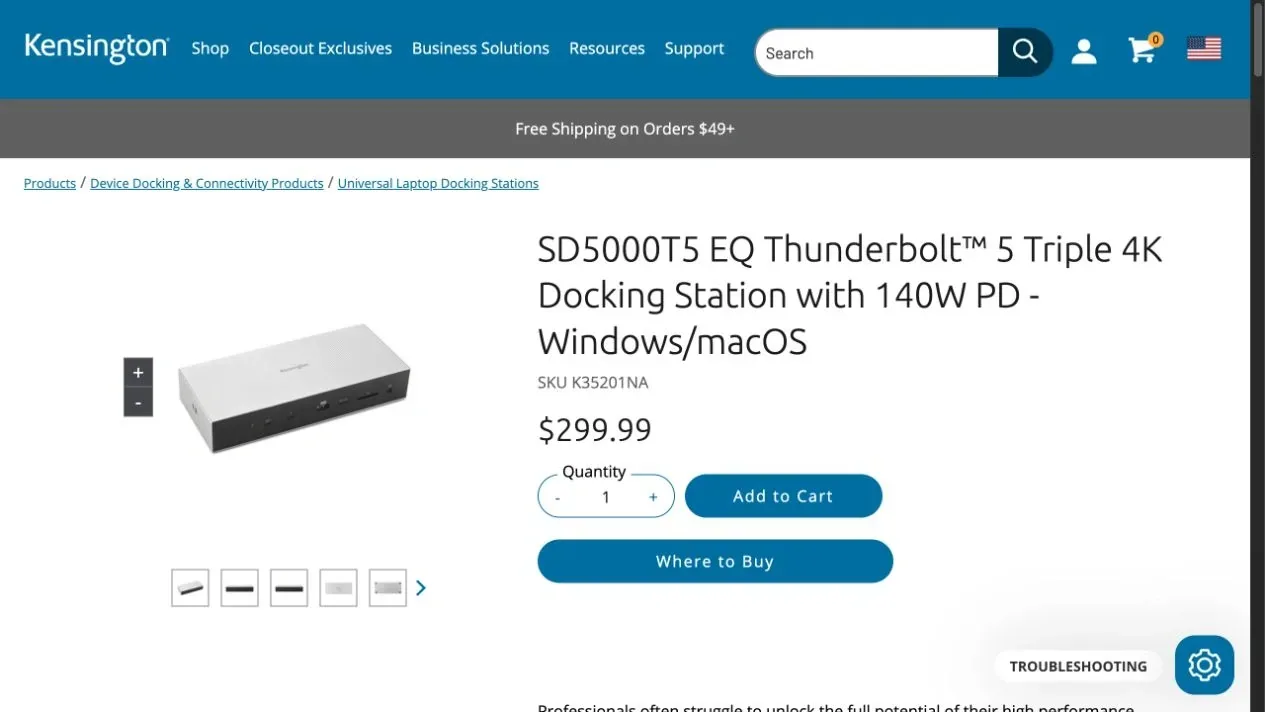
Kensington’s Thunderbolt 5 option advertises 80Gbps data connectivity and higher display bandwidth in its boost mode. Its display connections are downstream Thunderbolt ports, so ordinary HDMI/DisplayPort monitors can add adapter costs. “Triple” is especially dependent on the computer: Kensington lists two displays for many Mac models, with a separate three-display note for M5 Pro/Max. Confirm your exact laptop, rather than treating the title as a compatibility guarantee. Kensington’s product page lists Windows 11 23H2+ and macOS 14.5+.
For me, this belongs on the list when the existing computer and workload justify Thunderbolt 5. Buying it to rescue one ordinary monitor connection needs a much better explanation.
What they cost—and what the price leaves out
These are September 21, 2026 page snapshots, not guaranteed checkout totals or a cheapest-price search:
- Anker A83B3: the UK page displayed £299.99 with a separate promotion. That does not establish a U.S. price or U.S. stock, plug, tax, delivery, or warranty terms.
- Plugable UD-ULTC4K: its U.S. product page displayed $245.99 USD.
- CalDigit TS4: the U.S. store displayed $379.99 and an out-of-stock label for the new unit. A listed price is not proof you can order it directly today.
- Kensington SD5000T5 EQ: its U.S. product page displayed $299.99.
I would compare dock + required adapters + suitable cables + delivery/tax, then check the seller’s return conditions. Keep different currencies separate. A cheaper dock that needs three new adapters can lose its advantage surprisingly quickly.
Run this return-window test
Write down the last return date before you put the packaging away. Use the supplied or manufacturer-approved power equipment and host cable. Then test the things you bought the dock to simplify:
- Screens: select the intended resolution, refresh rate, and extended-desktop layout. Drag a different window onto each monitor.
- Daily reconnection: sleep, wake, restart, unplug, and reconnect. Repeat with each laptop if the desk is shared.
- A normal busy hour: use the webcam and microphone, move files to the external drive, and watch whether the laptop battery holds or charges under your real workload.
- Entertainment: try the streaming services and browser you actually use. Include any native streaming app you care about.
- Desk comfort: listen during a quiet call, check that cables reach without strain, and keep ventilation clear. A dock has not solved clutter if it makes the work area awkward.
Anker specifically documents black video with continuing audio on Macs using DisplayLink. Its proposed workaround is to disable browser hardware acceleration in Chrome or Edge and restart the browser; it says that workaround does not apply to Safari or Firefox. Treat it as a troubleshooting option, not a promise that every service will work. Anker’s protected-video instructions explain the limitation.
If streaming is central to your setup, test it immediately. If gaming responsiveness is the priority, I would start with a direct monitor connection and compare the dock against it. Anker itself notes that DisplayLink can add latency compared with direct or Thunderbolt connections. See its display notes.
My buying rule
For one screen and charging, start with the smallest compatible solution. For several office screens beyond the laptop’s native options, investigate DisplayLink and its software requirements. For native displays plus demanding peripherals, compare Thunderbolt docks against the actual laptop specification.
None of those is a universal winner. They are different answers to different desks.
Final Thought
I like the idea of a desk that becomes ready with one connection. I like it even more when I can explain exactly what that connection fixes.
A fourteen-port dock should earn its space by removing a daily annoyance. If a better cable does the job, that is a successful upgrade too.
Before buying, take the two photos, write down the models, and finish the sentence: “This fixes ______.” Your desk does not need to win a port-count competition. It needs to work when you sit down.