Trust & transparency
Evidence & disclosures
Evidence basis: Manufacturer-supplied evidence. Material claims or demonstrations came from the company responsible for the product and are not independent results.
Based on Google Maps’ official offline-map instructions; I did not test all seven trip scenarios, and offline coverage or features can vary by region.
Sources checked: Aug 20, 2026
Linked references: 1 explicit source in the article.
Download Google Maps Before Your Trip: 7 Times It Can Save You Stress
Getting lost used to require a folded paper map, bad handwriting, and at least one family argument at a gas station.
Now it can begin with a much smaller problem: a tiny No Service message on the phone that was supposed to know where we were going.
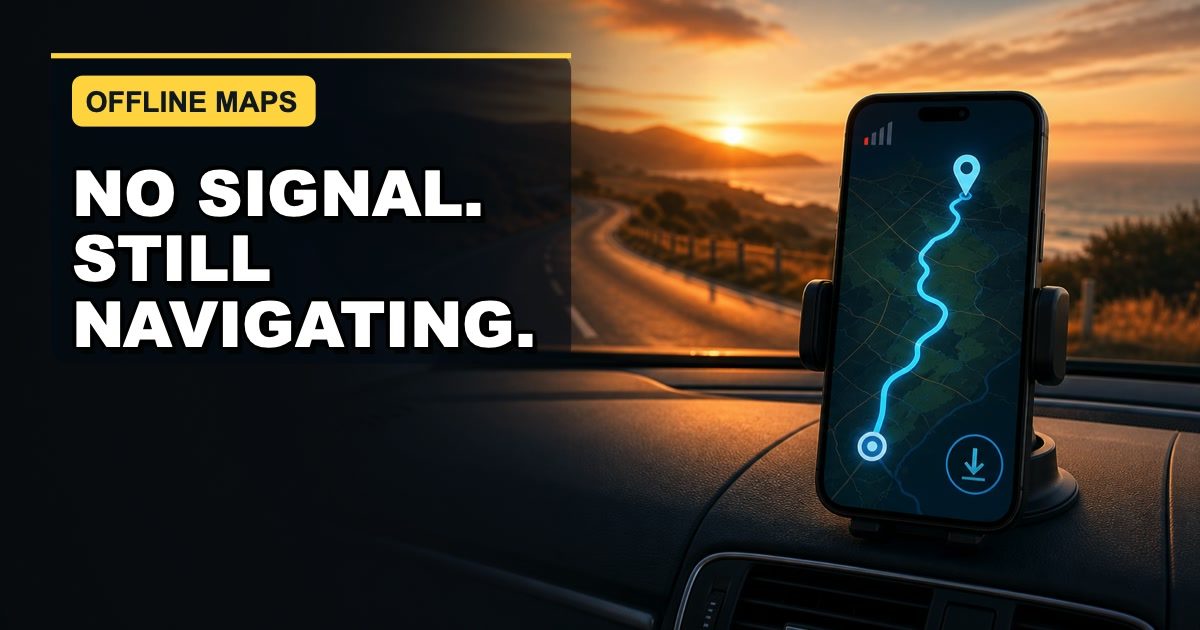
I like travel-prep habits that are boring at home and surprisingly heroic later. Downloading an area in Google Maps is one of those habits. It takes a few minutes on Wi-Fi, costs nothing, and can keep driving directions available when the signal gets weak or disappears.
That does not turn your phone into an all-knowing road oracle. Offline Maps has real limits. Google says the entire driving route needs to fit inside the downloaded area, and you lose live traffic, alternate routes, transit directions, walking directions, and bicycling directions while offline.
Still, as a backup plan for a beach trip, state park, family vacation, delivery route, or long drive through questionable coverage, it is a pretty useful rectangle to download.
TLDR
- In Google Maps, tap your profile picture, choose Offline maps, then Select your own map.
- Adjust the download box so your starting point, destination, and the complete driving route are inside it.
- Download the area on Wi-Fi before leaving and give it a useful name.
- Offline driving directions can work when the route stays inside the saved area.
- Offline mode does not include live traffic, alternate routes, transit, walking, or bicycling directions.
- Test the saved map while parked before a trip instead of discovering the problem halfway into nowhere.
The Five-Minute Habit
Most of us prepare for a trip by checking the weather, charging a phone, and hoping someone remembered the snacks.
The map usually gets treated like it lives in the sky and will always be there.
But a phone can know your location through GPS while still being unable to load the map data, traffic information, or a fresh route from the internet. That is the gap an offline map helps cover.
You download the geographic area before the trip. Later, if service drops, Google Maps can use that saved area for driving navigation as long as the whole route remains inside it.
The important phrase is the whole route.
Downloading only the beach, campground, hotel, or final town may not be enough. The road leading there matters too. I would rather save a slightly larger area and have some breathing room than create a perfect little offline map of the destination while the highway disappears ten miles outside the box.
How To Download An Offline Map
The most consistent setup path on Android, iPhone, and iPad is:
- Connect to the internet, preferably on Wi-Fi, and open Google Maps.
- Tap your profile picture or initial.
- Tap Offline maps.
- Tap Select your own map.
- Move and resize the map so it covers the full drive, not only the destination.
- Tap Download.
You can also search for a place, open its place information, tap the More menu, and choose the offline download option when it is available.
After the download finishes, return to Offline maps and confirm it appears in the list. Rename it something useful like State Park Weekend, Beach Trip, or Family Vacation instead of keeping a name that will mean absolutely nothing when you are tired.
Google also provides an automatic-update option in the Offline Maps settings. Downloaded maps expire, so leaving auto-update on is sensible if this is a route or area you use regularly.
1. The Beach Or State Park With Weak Service
Beaches, nature preserves, and state parks are exactly the places where I want technology to become less important.
They are also places where cell coverage can go from perfectly normal to one lonely signal bar doing its best.
Download the area around the park, the roads leading in, the parking entrance, and the route back toward a main road. This is the easiest version of the habit: do it the night before, while everyone is still home and nobody is asking whether you missed the turn.
2. A Camping Or Mountain Drive
Remote campgrounds and mountain roads are not ideal places to depend on a live data connection.
An offline map can preserve the basic driving route and nearby roads inside the downloaded area. Save a larger area than you think you need, especially when there are several possible entrances or long stretches between towns.
This is still navigation, not wilderness safety. Carry the address, campsite details, reservation information, and any park-provided directions separately. A downloaded map does not replace trail maps, emergency planning, or common sense.
3. The Family Road Trip That Arrives After Dark
A familiar highway can turn into a different experience after dark, in rain, or when everyone in the car has reached the emotional stage known as "Are we there yet?"
Download the destination city, the highway approach, the hotel or rental area, and enough surrounding road network to handle the final part of the drive.
The last fifteen miles are often when navigation matters most. That is when you are looking for an unlit entrance, a small side road, or a rental house that appears to have been hidden by a committee.
4. Storm-Season Travel
Storms can cause overloaded networks, power outages, and unreliable service. Having the map already stored gives you one less thing to download during a bad moment.
But this needs a bright warning label: an offline map is not a storm-safety tool. Google says offline driving does not include live traffic or alternate routes. That means it should not be trusted to know about current closures, flooding, emergency restrictions, or a safer detour.
Use official weather and transportation guidance before leaving. Use the offline map as a backup for basic location and driving context, not as permission to drive into unsafe conditions.
5. Delivery, Service, Or Field Work
Delivery drivers, repair technicians, photographers, inspectors, and anyone visiting several unfamiliar locations can lose time when one weak-service area breaks the flow of the day.
Downloading the work area in advance gives the phone a better chance of keeping basic driving directions available. It is especially useful when the route includes industrial areas, large developments, rural neighborhoods, or buildings where a signal disappears in the parking lot.
For a multi-stop day, make sure all stops and the roads between them fit inside the saved area. Remember that live traffic and alternate routes still need a connection, so offline maps are the backup layer, not the dispatch system.
6. International Travel Or A Limited Data Plan
Downloading a city or region on hotel Wi-Fi can reduce how much map data needs to load while you are out. That can help when roaming is expensive, your plan is limited, or you simply do not want navigation eating into mobile data.
Check availability before relying on this. Google notes that offline map downloads are not offered in every country or region. Also remember that offline mode is for driving directions; it will not provide the walking or transit directions many travelers use most in a city.
If your trip depends on trains, buses, or walking, save the addresses and transit details separately while you are online.
7. The Ordinary Day When Mobile Data Stops Cooperating
Not every useful backup needs a dramatic story.
Sometimes mobile data stalls. Sometimes a carrier has an outage. Sometimes the phone shows bars but acts like the internet has left for lunch.
Keeping your home area or regular work region downloaded can make everyday driving a little more resilient. Google Maps can try to update saved maps automatically over Wi-Fi as they get close to expiring, so a frequently used local area does not have to become another weekly chore.
This is especially practical for parents, caregivers, delivery drivers, and anyone who regularly drives across pockets of inconsistent coverage.
What Works Offline And What Does Not
Offline Maps is a driving backup, not a complete copy of Google Maps.
What it can do:
- Show downloaded map information for the saved area.
- Provide driving guidance when the entire route is inside that area.
- Help when a connection is slow, unreliable, or unavailable.
What it cannot do while offline:
- Show live traffic information.
- Offer alternate driving routes.
- Provide transit directions.
- Provide bicycling directions.
- Provide walking directions.
- Load a route that leaves the area you downloaded.
That last limitation is the one most likely to surprise people. If a road closure or wrong turn sends you outside the saved area, the app may need a connection again. Give the route a generous border, and download a second area when one map cannot comfortably cover the drive.
My Night-Before Checklist
Before a trip where coverage may be questionable, I would check these seven things:
- Download the area on Wi-Fi.
- Confirm the start, destination, and full driving route fit inside it.
- Add extra space around the route for small mistakes and local roads.
- Name the map so it is easy to recognize.
- Turn on automatic updates for maps you expect to reuse.
- Save the destination address and important reservation details somewhere else.
- Bring a car charger or battery pack, because an offline map on a dead phone is a very modern paperweight.
Try The Parked-Car Test
Google's setup page does not require this test, but I think beginners should do it once.
While you are parked at home, turn off Wi-Fi and mobile data for a moment. Open Google Maps, choose the destination, and see whether the driving route is still available inside your downloaded area. Then restore your connection.
You are ready when:
- The destination appears.
- The complete driving route loads while the phone is offline.
- The route stays comfortably inside the saved area.
- You understand that traffic and alternate routes will be missing.
You need more preparation when:
- The route touches or crosses the edge of the download.
- The trip relies on walking, cycling, or transit directions.
- You expect closures, flooding, construction, or rapidly changing road conditions.
- The phone does not load the route without data.
Do this while parked. Trip preparation should reduce stress, not create a new reason to look at a phone while driving.
If The Download Option Is Missing
First, make sure Google Maps is updated and you are online. Android users should be signed in. On iPhone and iPad, Google says the offline download is not available while using Incognito mode.
The feature is also unavailable in some countries and regions because of local restrictions, language support, address formats, or other limitations.
Menu wording can change over time, but Profile picture > Offline maps > Select your own map is the clearest place to start.
Final Thought
Travel prep does not always need to be a giant packing system or a color-coded spreadsheet.
Sometimes it is just downloading a rectangle while you are still on the couch.
That rectangle will not give you live traffic, rescue you from every detour, or replace a real safety plan. But when the signal drops and the driving route stays on the screen, five quiet minutes of preparation can feel like a very good decision.
Download the beach, park, campground, vacation stop, or work area the night before. Test it while parked. Know what goes missing offline.
Then leave the house with one less thing to worry about.
Source
This guide is based on Google's official Download areas & navigate offline in Google Maps help page, supplied as accessed July 15, 2026 and rechecked July 16, 2026. Google maintains separate Android and iPhone/iPad instructions on the same help page.