Trust & transparency
Evidence & disclosures
Evidence basis: Researched analysis. The article compares public evidence and does not claim hands-on testing unless a section says otherwise.
Built from Nintendo’s official transfer, compatibility, parental-control, GameChat, account, and membership guidance; I did not perform every family migration scenario.
Sources checked: Aug 20, 2026
Linked references: 7 explicit sources in the article.
A console upgrade can look like one box replacing another. In a family, it is closer to moving a tiny digital household: user profiles, favorite saves, parental rules, memberships, controllers, screenshots, and the one game somebody will be very unhappy to discover has a special transfer process.
I do not own a Nintendo Switch or Nintendo Switch 2. I have been a player in the past, and I still love games in general, so I approached this as a researched family-prep guide. I hope it helps someone else avoid a transfer-day headache.
Colin Michaels
Nintendo makes the main move sound simple, and much of it is. But its own support pages also contain enough exceptions that I would not start the transfer while everyone is standing around waiting to play. I would do a ten-minute household check first.
The short version
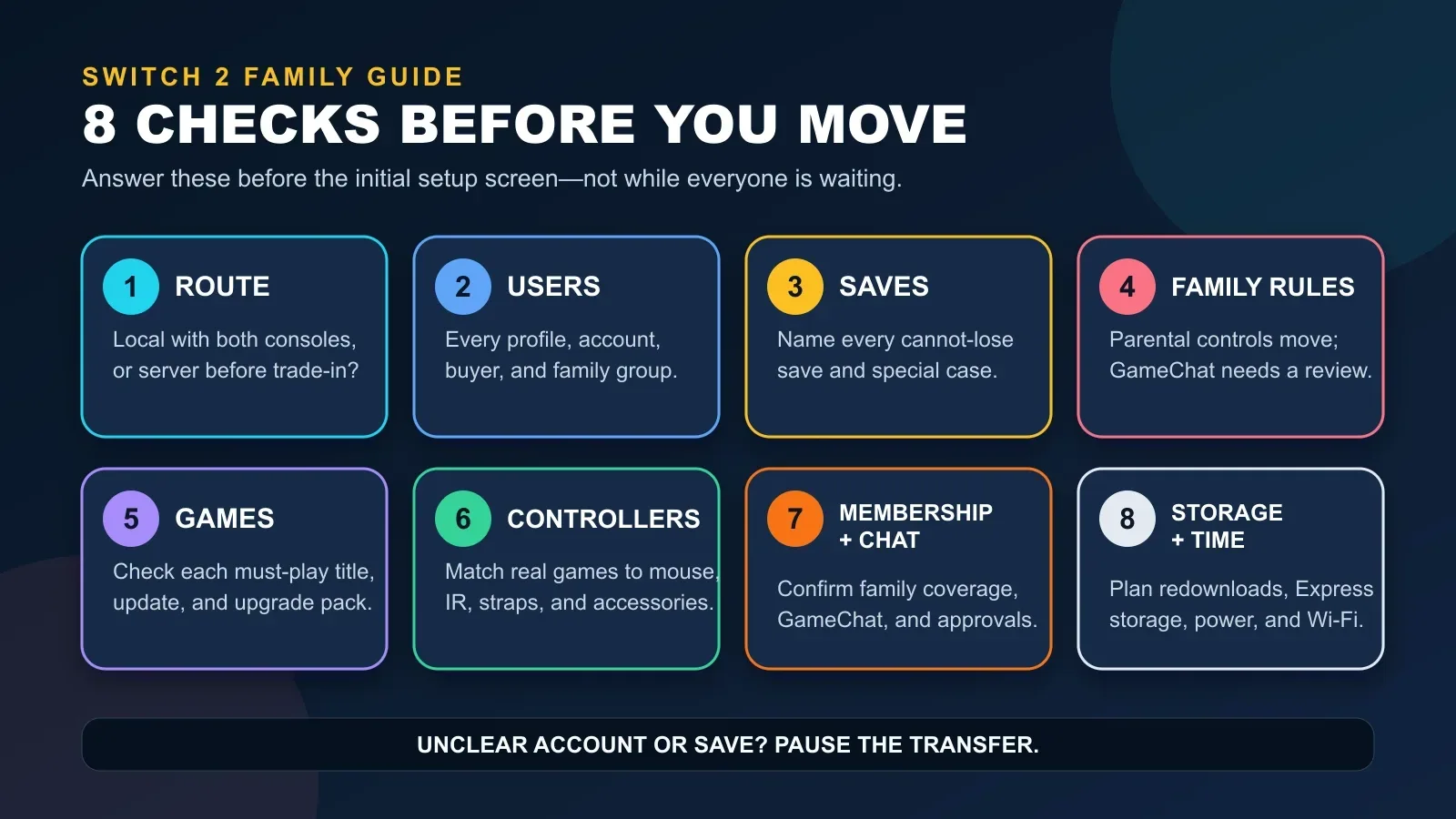
- Choose local or server transfer before setup. A full transfer is offered during the Switch 2 initial setup, and the two routes treat the old console differently.
- Name every user. The full transfer moves all users, not just the person who bought the new system.
- Check every cannot-lose save. Cloud support varies, unlinked profiles need attention, and shared saves can have separate instructions.
- Keep the family rules, then configure GameChat separately. Parental Controls can move, but Nintendo says GameChat settings need adjustment.
- Look up the actual games. Compatibility is broad, not universal, and paid or free upgrades differ by title.
- Match controllers to features and accessories. Older controllers may work, but not for Joy-Con 2-only mouse controls or every old accessory situation.
- Confirm membership and chat requirements. An existing Nintendo Switch Online membership continues; GameChat now requires a membership and persistent internet.
- Plan downloads, storage, and setup time. Digital games redownload, old microSD game storage does not simply move over, and some settings need to be rebuilt.
My practical rule: if a question involves a user profile or a save file and the answer is “probably,” pause. “Probably” is fine for deciding which color controller to buy. It is not fine for the family island.
This is a household move, not just a new-console setup
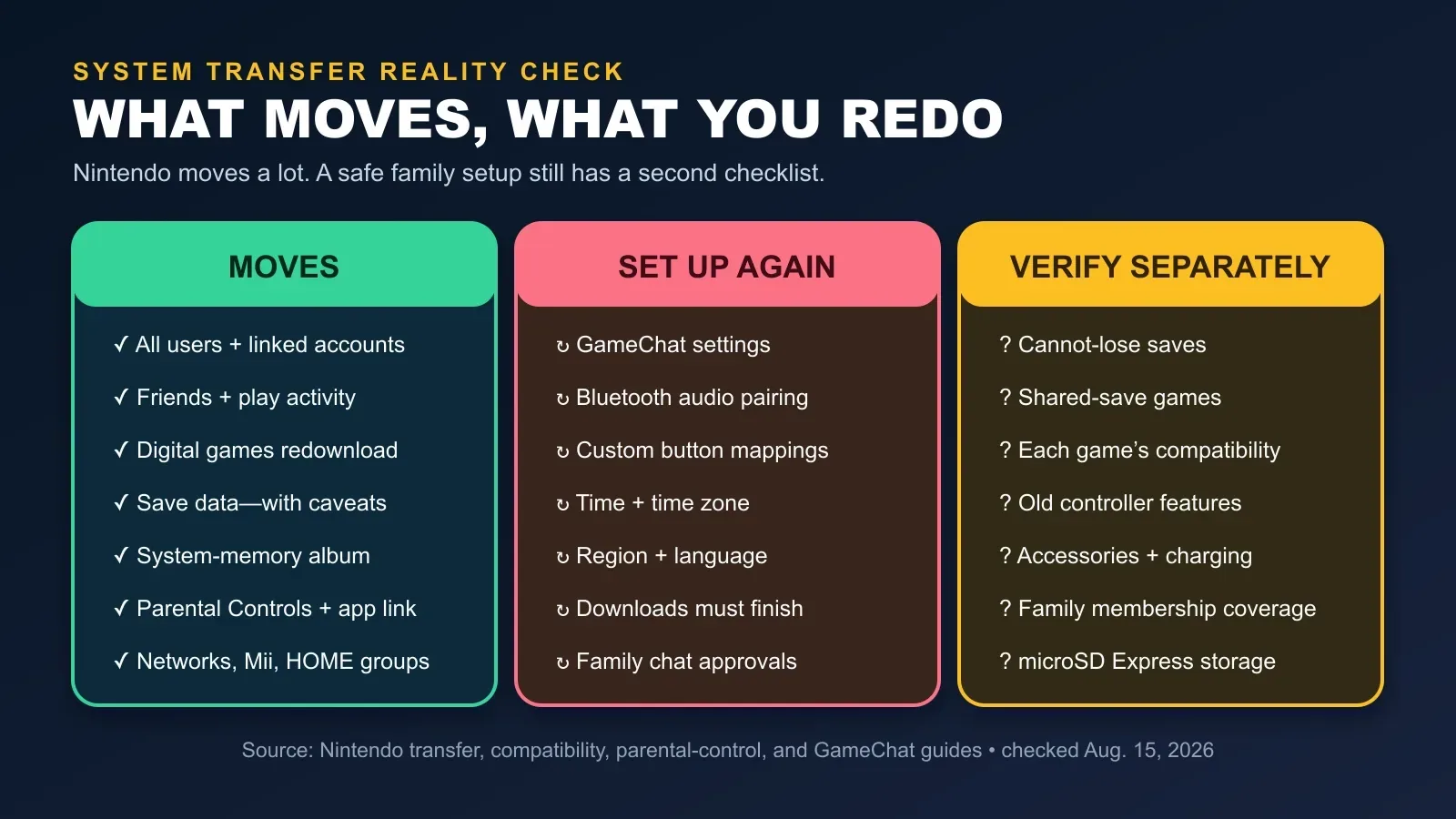
Nintendo says its full System Transfer can move digital software, all users, user settings, signed-in Nintendo Accounts, friends, play activity, save data with important caveats, screenshots and videos, parental controls, Mii data, and several other settings. That is helpful—but it also means one person can affect everyone sharing the old system.
The detailed Nintendo Support transfer article says all users are included and warns that data can be deleted from the source console. Before anyone starts, gather the household and make sure nobody thinks the old Switch is about to remain an untouched backup.
1. Pick the transfer route before opening setup
The full Nintendo Switch-to-Switch 2 System Transfer is part of the Switch 2 initial setup. Nintendo offers two routes: local communication when both consoles are together, or a server upload when the old system must leave before the new one arrives.
Binary comparison from Nintendo Support. A value of 1 means the condition applies; 0 means it does not. Local transfer can still move or delete save data even though it does not factory-reset the entire source console.
Use local communication when the Switch 2 is in hand and both systems can sit near each other. Nintendo calls this the preferred route when the old console is still available.
Use server transfer only when the old console must be traded in, sold, or given away first. Nintendo says the source is initialized after upload, all users are included, and the transfer remains on its server until retrieved, canceled, or the displayed deadline passes—up to one year. That is not a casual backup button.
If the Switch 2 initial setup has already been completed and the household wants the full transfer, Nintendo says the new console must be initialized and set up again. That alone is a good reason to decide before anyone rushes through the welcome screens.
2. Verify every user and Nintendo Account
Nintendo requires an internet connection and at least one user profile linked to a Nintendo Account to perform the transfer. The detailed support page says all users, signed-in Nintendo Accounts, friends, play activity, and “users you have played with” are part of the move.
Before transfer day, make a simple roster: player nickname, linked Nintendo Account, parent or guardian who manages it, and whether the user is part of the intended family group. Do not rely on everybody remembering which email address bought a game three years ago.
- Open each user and confirm the correct Nintendo Account is linked.
- Confirm child or supervised users sit under the right parent or guardian family group.
- Identify which account purchased each important digital game or downloadable add-on.
- Check that the account owner can sign in and complete any security verification.
For a household hoping to use the old and new consoles, pause here and read Nintendo’s current guidance for digital games across multiple consoles. Virtual Game Cards, the online-license setting, and the purchasing account matter. A full replacement transfer is not the same plan as keeping two active family consoles.
3. Inventory the saves nobody can afford to lose
This is the most important check. Nintendo’s save-data rules vary by account linkage, cloud-backup support, game design, and transfer route. Its support page warns that source-console save data can be deleted or moved, and it specifically calls out saves shared between users.
Nintendo names Animal Crossing: New Horizons as an example of a game with one save shared across users that cannot be transferred through this full system-transfer process. Nintendo links to a separate island-transfer path. Other games may have their own instructions, so check the support page for the actual title rather than assuming “System Transfer” covers it.
- Ask each player to name one save they would be genuinely upset to lose.
- Check whether that game supports Save Data Cloud Backup for that user.
- Check whether the save belongs to an unlinked local profile.
- Search Nintendo Support for game-specific transfer instructions.
- If any answer is unclear, stop before the full transfer and contact Nintendo Support or use the documented individual-save route where appropriate.
I would take a few photos of the user list, HOME Menu groups, and important game/save screens for reference. Those pictures are not backups, but they can make a support conversation much less confusing.
4. Keep Parental Controls, but plan GameChat as a separate setup
Nintendo says Parental Controls and the existing smart-device app link can transfer. That is reassuring. It also says GameChat settings need to be adjusted, which is exactly the kind of sentence a family can miss in an otherwise smooth migration.
For users under 16 and supervised users, Nintendo requires GameChat parental controls through the Nintendo Switch Parental Controls app. Parents approve specific friends, can withdraw approval, manage video-chat permission, and review activity such as who the child chatted with and for how long. Nintendo says the parent does not receive the contents of the conversation.
Video chat needs a compatible USB camera. Voice chat does not: Switch 2 has a built-in microphone. Depending on the settings for a younger or supervised player, camera use can require parent approval for each new GameChat room.
- Confirm the parental-control PIN and the phone running the Nintendo app are available.
- Write down the current play-time and bedtime rules before transfer day.
- Decide which friends, if any, can be approved for GameChat.
- Decide whether video chat is blocked or allowed through per-session approval.
- Remember that game-specific communication controls and GameChat controls are related but not identical.
5. Check the games the family actually plays
Nintendo Switch 2 supports many physical and digital Nintendo Switch games, but Nintendo does not promise universal compatibility. Some games are unsupported, some have partial-function issues, and some depend on original hardware or accessories.
Use Nintendo’s game compatibility page and the individual game page or Nintendo eShop listing. Nintendo says its compatibility status can change as testing and updates continue.
Also separate “the game runs” from “the version I want costs nothing.” Nintendo offers paid Switch 2 Edition upgrade packs for select titles and free updates for others. The contents differ by game. Do not build the family budget around a blanket free-upgrade assumption.
- Write down the household’s five must-play games.
- Check each title’s current Switch 2 compatibility status.
- Check whether it needs an original Joy-Con, accessory, or special save-transfer process.
- Check whether a paid upgrade pack exists and whether the family actually needs it.
6. Match controllers to the features and accessories that matter
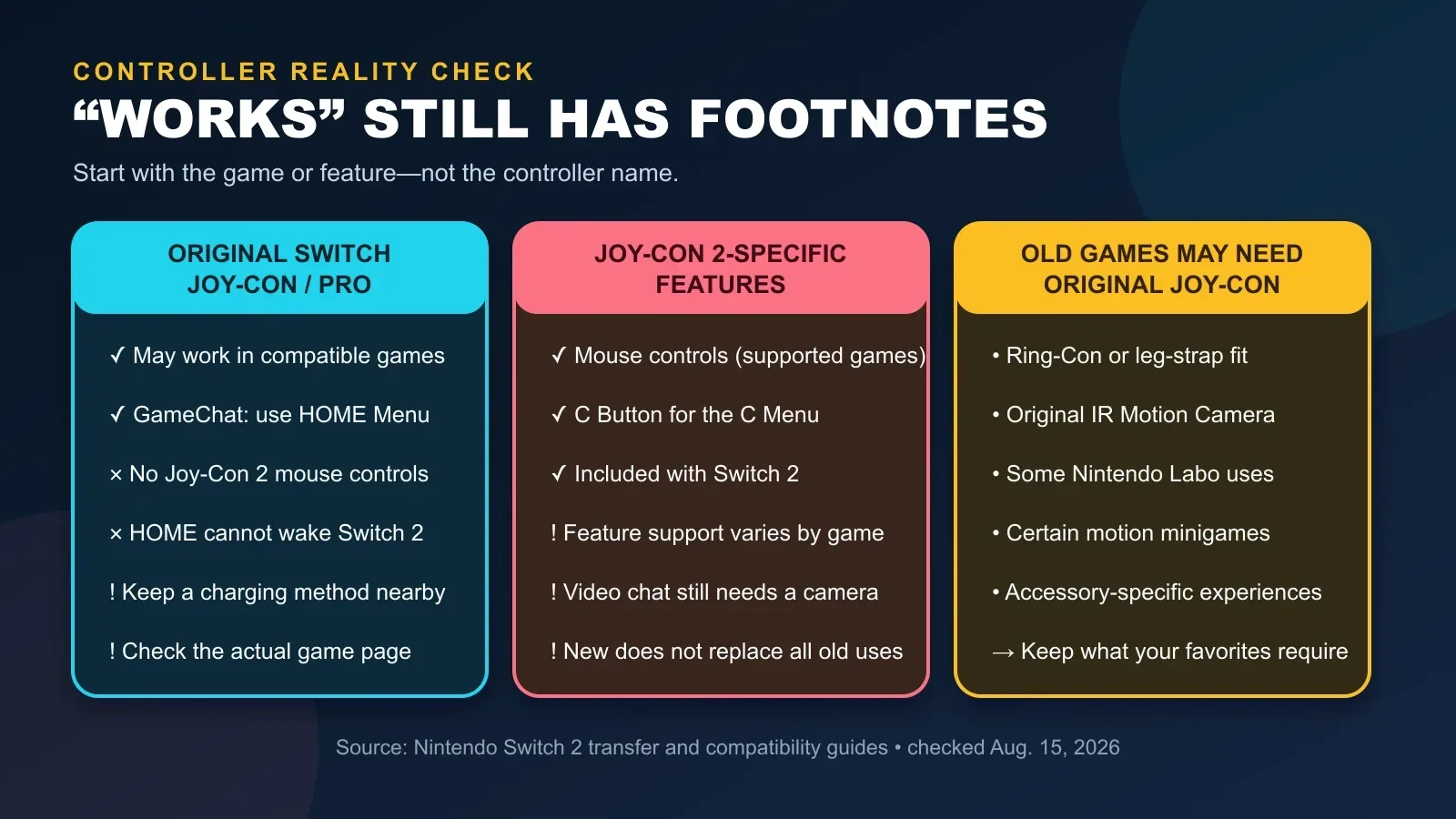
Nintendo says compatible games can use original Nintendo Switch Joy-Con and Pro Controllers on Switch 2. The easy mistake is shortening that to “all the old controllers work.” The footnotes matter.
An original controller cannot provide a feature that belongs to Joy-Con 2, such as mouse controls. Original Joy-Con and the original Pro Controller also cannot wake Switch 2 from sleep with the HOME button. A controller without a C Button can still start GameChat from the HOME Menu.
The compatibility story also runs in the other direction: some original Switch games still need original Joy-Con. Nintendo lists examples involving the Ring-Con and leg strap, the original Joy-Con IR Motion Camera, and Nintendo Labo accessories. If one of those games is a household favorite, keeping the original Joy-Con—and a way to charge it—may be more important than buying another new controller.
7. Confirm Nintendo Switch Online, the family group, and GameChat
Nintendo says an existing Nintendo Switch Online membership continues on Switch 2 after the account is linked. For a family membership, confirm the players who need benefits are still in the correct Nintendo Account family group.
GameChat has a separate current requirement: Nintendo says a Nintendo Switch Online membership and persistent internet connection are now required. The free open-access period ended March 31, 2026. Nintendo also describes phone-number verification for GameChat; a parent or guardian handles that step for an under-16 or supervised user.
This does not mean Nintendo Switch Online is required merely to perform the basic system transfer. It matters here because families may rely on Save Data Cloud Backup, online play, shared membership benefits, or GameChat. Those are different jobs, and the article should not blur them together.
- Who owns or manages the individual or family membership?
- Which family-group members are covered?
- Which important games support Save Data Cloud Backup?
- Does anyone plan to use GameChat immediately?
- Has the parent or guardian completed the required account and app setup for younger users?
8. Plan storage, redownloads, and the boring little settings
After the system transfer, Nintendo says digital games are redownloaded to Switch 2. That means internet speed, available storage, and download time matter. “The transfer is finished” may not mean “every game is ready for couch co-op.”
Nintendo also says a standard microSD card used with the original Switch is not the Switch 2 game-storage format. Switch 2 uses microSD Express for game data. The old card may still be requested temporarily when moving album screenshots and videos, but it is not a simple move-the-card-and-play plan for installed games.
Finally, rebuild the details Nintendo says do not transfer: Bluetooth audio devices, custom controller button mappings, time, time zone, region, and language. Recheck GameChat. Update both consoles first, plug them into power, keep the Wi-Fi password handy, and leave time for software downloads.
- Update the original Switch and the Switch 2.
- Charge both systems and keep their power adapters nearby.
- Confirm reliable internet and enough Switch 2 storage.
- Choose whether to transfer album screenshots and videos.
- Have the old microSD card available if Nintendo asks for album data.
- Plan to re-pair Bluetooth audio and recreate custom button mappings.
- Do not promise the family that every digital game will be ready the minute the transfer ends.
The 10-minute household huddle
Before anybody presses Start System Transfer, put every regular player in the same room—or at least in the same group chat—and answer these eight questions:
- Route: Are both consoles available, or is the old one leaving first?
- Users: Is every profile linked to the correct account and family group?
- Saves: What is each player’s one cannot-lose save, and does it need special handling?
- Family rules: What play-time, bedtime, communication, purchase, and GameChat rules should remain?
- Games: What five titles must work, and what does Nintendo currently say about them?
- Controllers: Does any favorite game rely on mouse controls, original Joy-Con, Ring-Con, a leg strap, IR, or Labo?
- Membership and chat: Who manages Nintendo Switch Online, and who will use GameChat?
- Storage and time: Is there enough storage, internet bandwidth, battery, and patience for the move and redownloads?
If all eight answers are clear, the transfer becomes a checklist instead of a guessing game. If an account or save answer is still fuzzy, waiting one more evening is cheaper than turning family game night into a support-ticket marathon.
My stop signs
- A user profile is not linked to the account everyone thought it was.
- Nobody has checked the cannot-lose save or the game-specific transfer page.
- The old console is being traded in before everyone understands the server route and deadline.
- A child expects GameChat to work immediately, but the parent app and friend approvals are not ready.
- A favorite game or accessory is being treated as compatible without checking the current title page.
Official pages I would keep open
- Nintendo Switch 2 Transfer Guide
- System Transfer from Nintendo Switch to Nintendo Switch 2
- Nintendo Switch Game Compatibility with Nintendo Switch 2
- Nintendo Switch Parental Controls
- Managing a Child’s GameChat Experience
- GameChat Guide and FAQ
- Playing Games Across Multiple Nintendo Consoles
These pages were checked on August 15, 2026. I did not confirm a visible original publication date on Nintendo’s main transfer guide, and compatibility or service details can change, so I would recheck them immediately before an actual move.
Final thought
I am not speaking as a Switch owner who has already done this. I am speaking as someone who has played games, still loves them, and knows that the emotional value of a save file can be wildly larger than the space it takes on a card.
The best upgrade is not the one that happens fastest. It is the one where every player can sign in, find the save they care about, use the family rules everyone agreed on, and get back to playing without discovering that “compatible” had an asterisk nobody read. I hope this checklist helps somebody make that move a little more calmly.