Trust & transparency
Evidence & disclosures
Evidence basis: Manufacturer-supplied evidence. Material claims or demonstrations came from the company responsible for the product and are not independent results.
Just reporting on what was found from a google search.
Sources checked: Aug 14, 2026
Linked references: 15 explicit sources in the article.
Relationship disclosure: no affiliated links or any other payment for opinions and reporting.
AI assistance: AI helped with research and rewriting dictated notes.
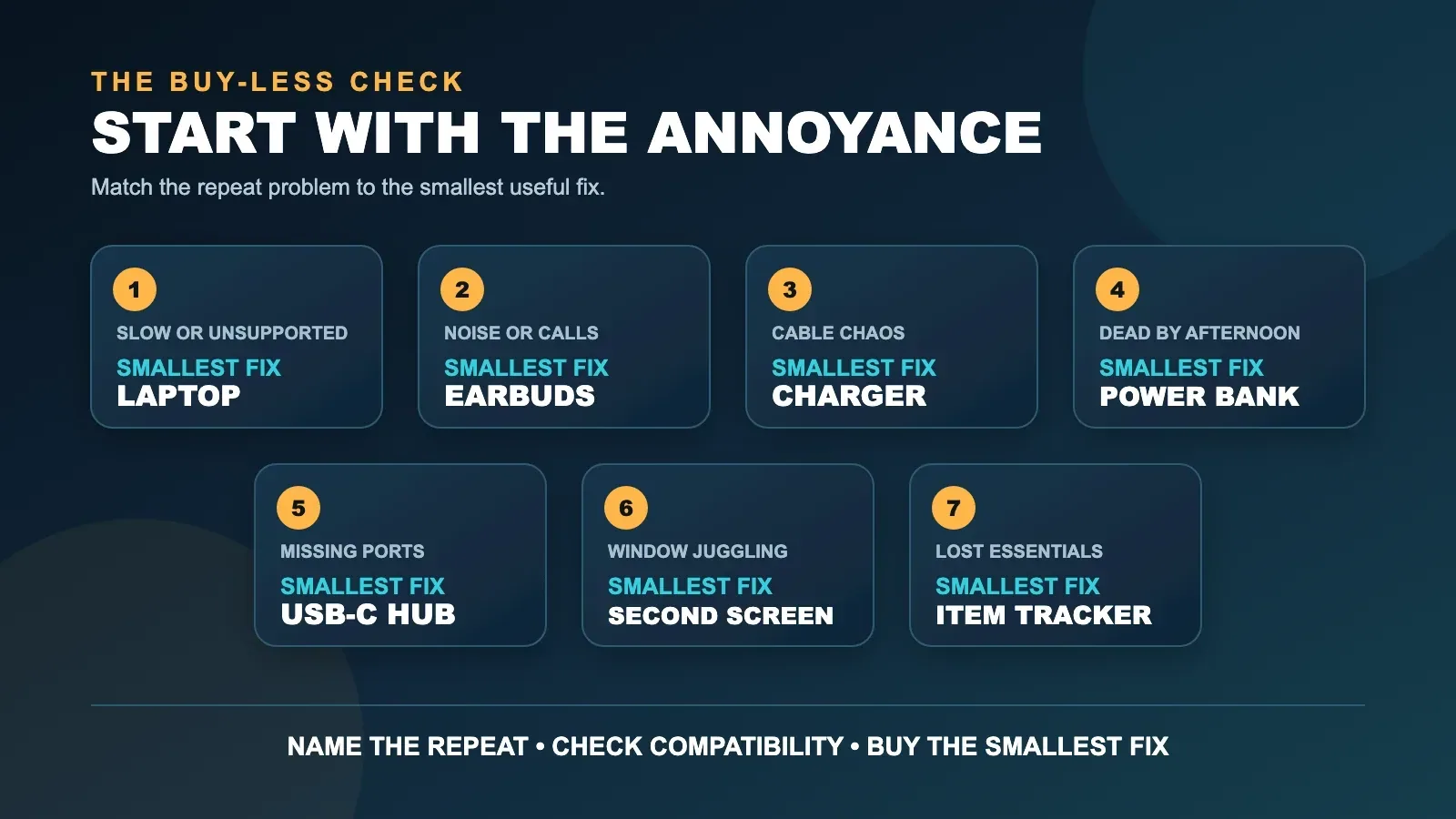
Back-to-school shopping does not need to mean buying every gadget that promises to make a student smarter, more organized, or somehow ready for anything. The better question is simpler: what keeps going wrong during the school day—and what is the smallest, most useful fix?
From a dependable charger and power bank to earbuds, a USB-C hub, or a portable second screen, these are seven gadgets worth considering before spending money on a new phone, smartwatch, or smart refrigerator. Samsung's 2026 guide helped spark the idea, but the recommendations below are brand-neutral and focused on products that solve real school-year problems. I would rather start smaller.
If a student's laptop dies by the middle of the day, the first useful purchase may be the right charger or power bank—not new earbuds, a watch, and three months of payments on a shiny new phone. The best school-year gadget is usually the one that removes an annoyance you can name.
I have not tested every product in these categories, and this is not a ranked list. The specific products below are comparison starting points, not hands-on endorsements. Their links go directly to the manufacturers and are not affiliate links.
TLDR
- Name the repeated problem before looking for a product.
- Check school or program requirements before buying a laptop.
- Earbuds help when noise, calls, or commuting are the real problem—and when school rules allow them.
- A correctly matched charger, cable, power bank, or USB-C hub can be more useful than a major upgrade.
- A portable second screen earns its spot only when side-by-side work is already part of the routine.
- Use item trackers for belongings, not for secretly tracking people.
- Buy one fix, use it for a week, and only then decide whether anything else is missing.
My Three-Yes Test
Before any gadget goes into the cart, I would make it earn three yeses:
- Can I name the repeated problem in one sentence? “My battery is dead before the last class” counts. “It looks cool” does not.
- Will this solve the problem several times a week? A once-a-semester annoyance does not need a permanent device.
- Have I checked the boring details? School rules, required software, ports, charging power, operating-system support, case fit, and return policy are where good ideas usually go sideways.
Three yeses means keep looking. One or two means wait.
1. A Laptop—Only When the Current One Cannot Do the Actual Work
A laptop is the biggest purchase on this list, so it should face the toughest test.
Example to compare: Framework Laptop 13. Its user-selectable ports and repair-and-upgrade design make it a useful example when longevity matters. It is not a universal school laptop: the DIY edition requires setup, and the student's required software still decides whether it fits.
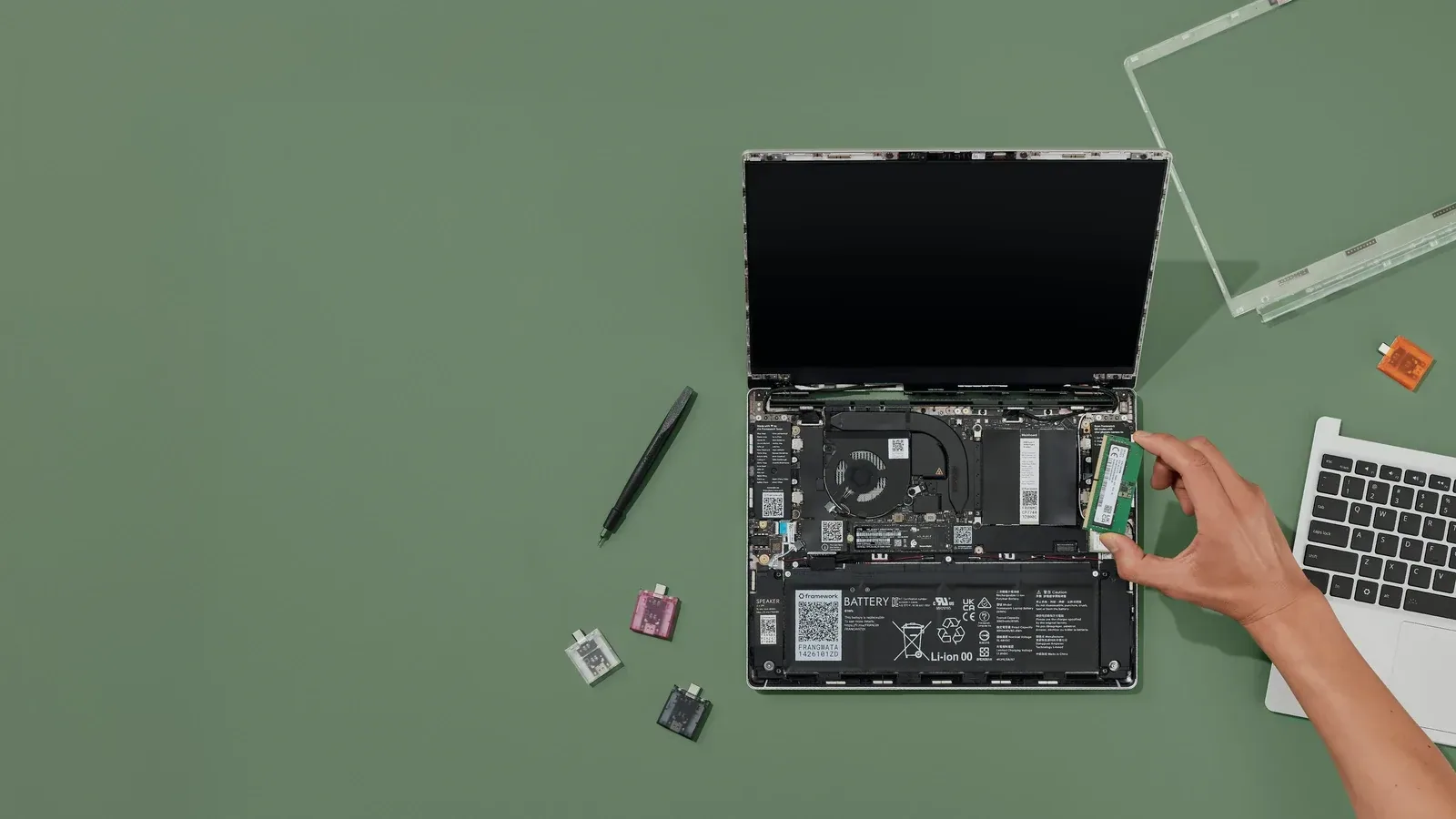
Start with the school, teacher, or program requirements. Does the work happen in a browser, or does it require Windows or macOS software? Will the student edit video, run engineering tools, use testing software, or just write papers and join video calls? A lightweight Chromebook can be perfectly sensible for one student and completely wrong for another.
Used and refurbished machines deserve an update check. Microsoft ended normal Windows 10 support on October 14, 2025, so a used Windows laptop should be checked for Windows 11 compatibility or an applicable supported update path. For a Chromebook, Google shows the final automatic-update date under Settings > About ChromeOS > Additional details.
My rule: buy enough computer for the required work, not the most computer a sale page can make sound educational.
2. Earbuds or a Headset—When Noise and Calls Are the Problem
Earbuds can earn their place for a commuter, a student taking video calls, or anyone trying to focus in a noisy home or dorm. The practical features are not the flashiest ones:
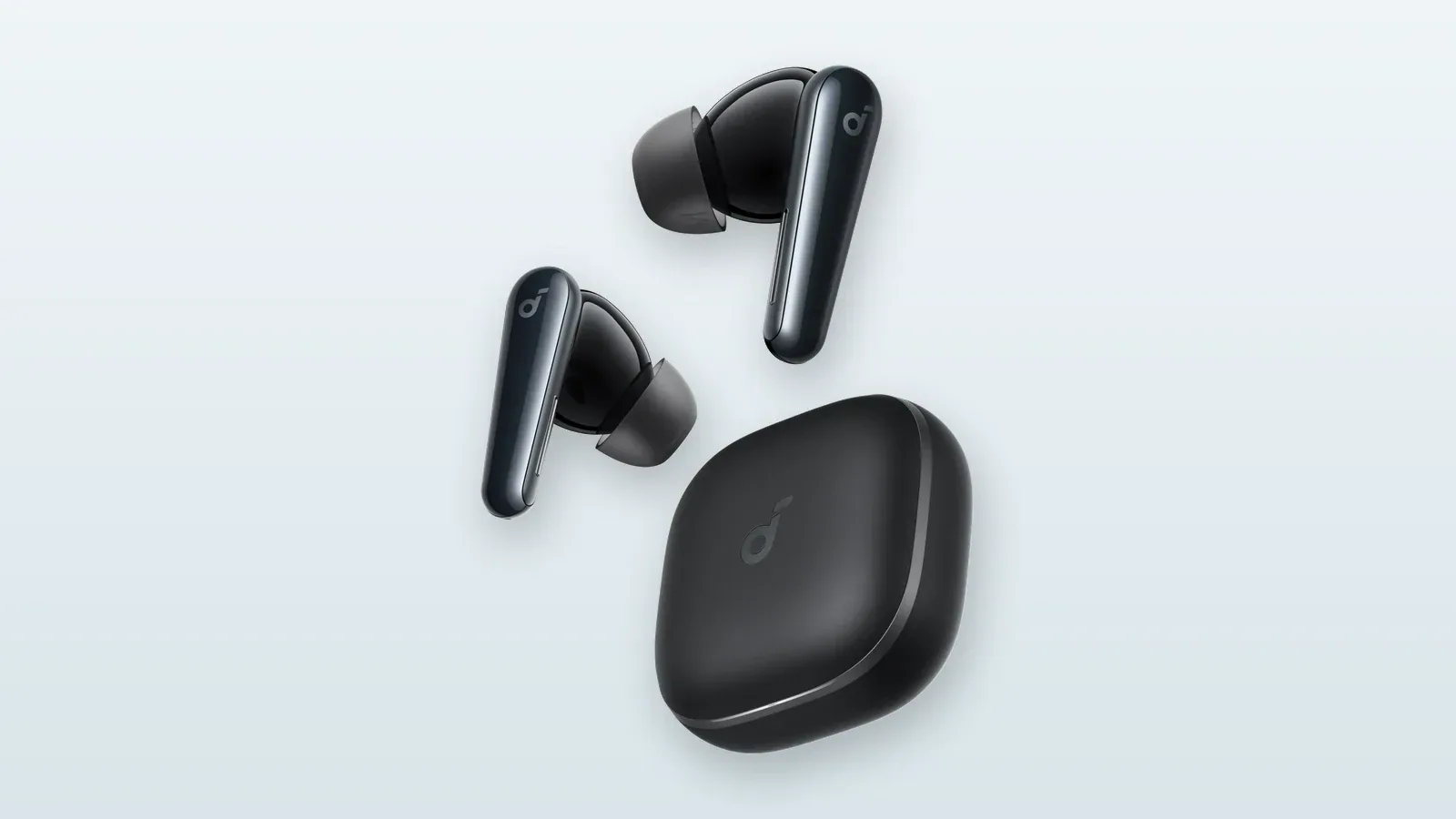
Example to compare: soundcore Liberty 5. The official specifications include active noise cancellation, multipoint connection, and 4.6-gram earbuds. That still does not tell you whether they fit comfortably or sound clear in a real call, so buy from somewhere with a sensible return policy and check school rules first.
- a microphone that works clearly for calls
- a comfortable fit for the length of a normal study session
- controls that do not require opening an app every time
- reliable switching between the devices actually used
- a transparency or awareness mode when hearing the room matters
Check the school's rules first. Some classrooms prohibit earbuds, and noise cancellation is not a reason to ignore traffic, announcements, roommates, or a teacher trying to get your attention.
If the student already owns comfortable earbuds that hold a charge and make clear calls, this category is done. New AI features do not automatically create a new need.
3. One Correct Charger and Cable—The Boring Winner
This may be the least exciting recommendation and the one that prevents the most daily nonsense.
Example to compare: UGREEN Nexode Pro 100W 3-Port Charger. It combines two USB-C ports and one USB-A port with up to 100W output. That maximum is not delivered to every device at once, so check the manufacturer's power-sharing chart and make sure the cable can handle the job.
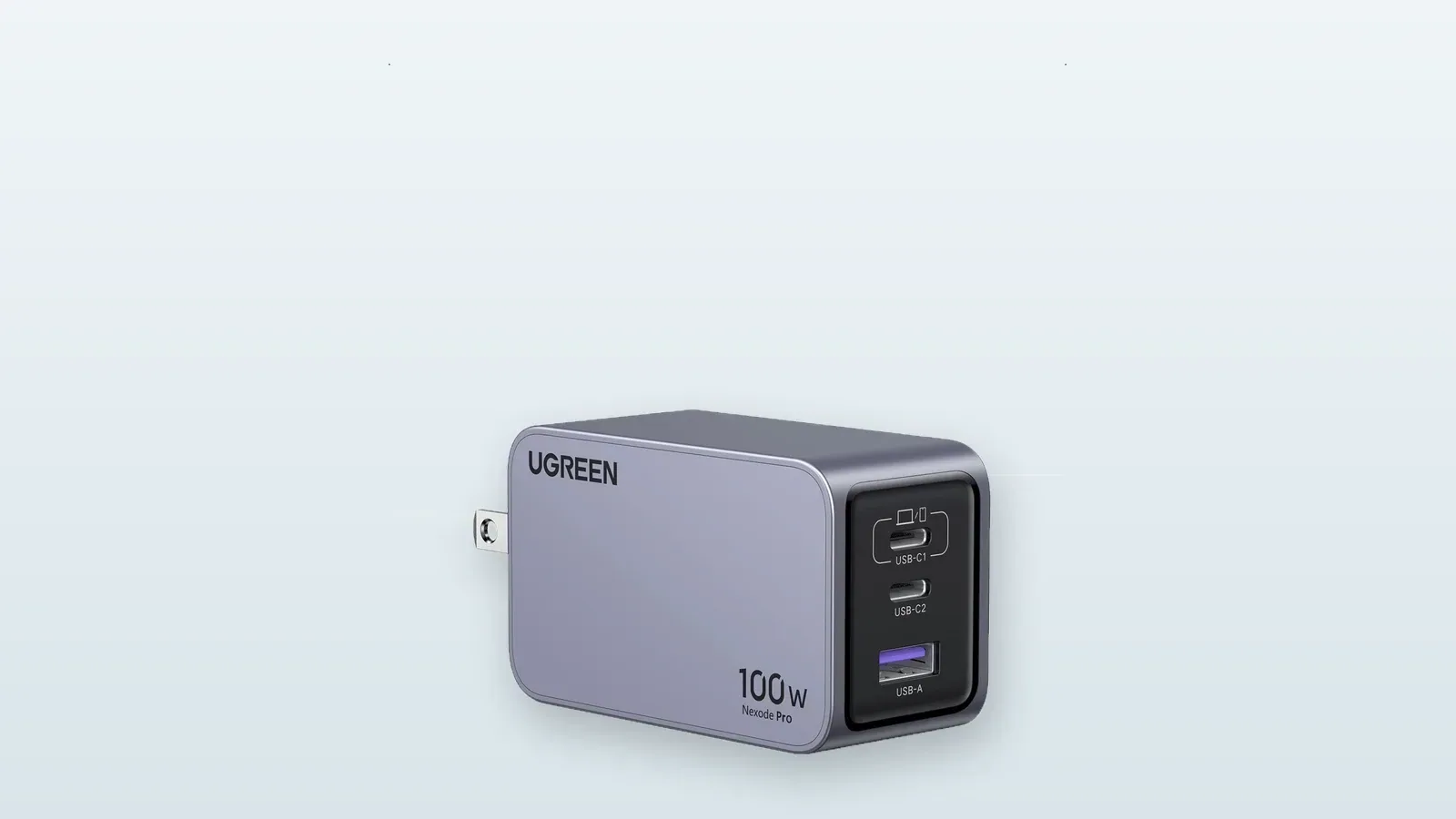
USB-C describes the connector shape, not one universal level of charging or data performance. USB-IF notes that cables have different capabilities, and current certified USB-C cable labeling can identify power support such as 60W or 240W. The practical move is to match the charger and cable to the laptop or tablet maker's stated requirement.
A compact charger that can safely cover the laptop and phone may replace two or three power bricks. A clearly labeled spare cable in the backpack may prevent the classic “I brought a cable, just not the cable that does the thing” problem.
Do not buy a mystery cable bundle because every end looks familiar. Confirm the power rating, data needs, length, and connector on both ends.
4. A Power Bank—If the Day Regularly Outlasts the Battery
A power bank is useful when outlets are scarce, the commute is long, or the same device repeatedly runs low before the day ends.
Example to compare: Anker Laptop Power Bank (25K, 165W). Its laptop-class output and built-in cables address the exact problem this category is meant to solve. The catch is weight: Anker lists it at 595 grams, or about 21 ounces, so it only earns a backpack spot if that much portable power is genuinely needed.
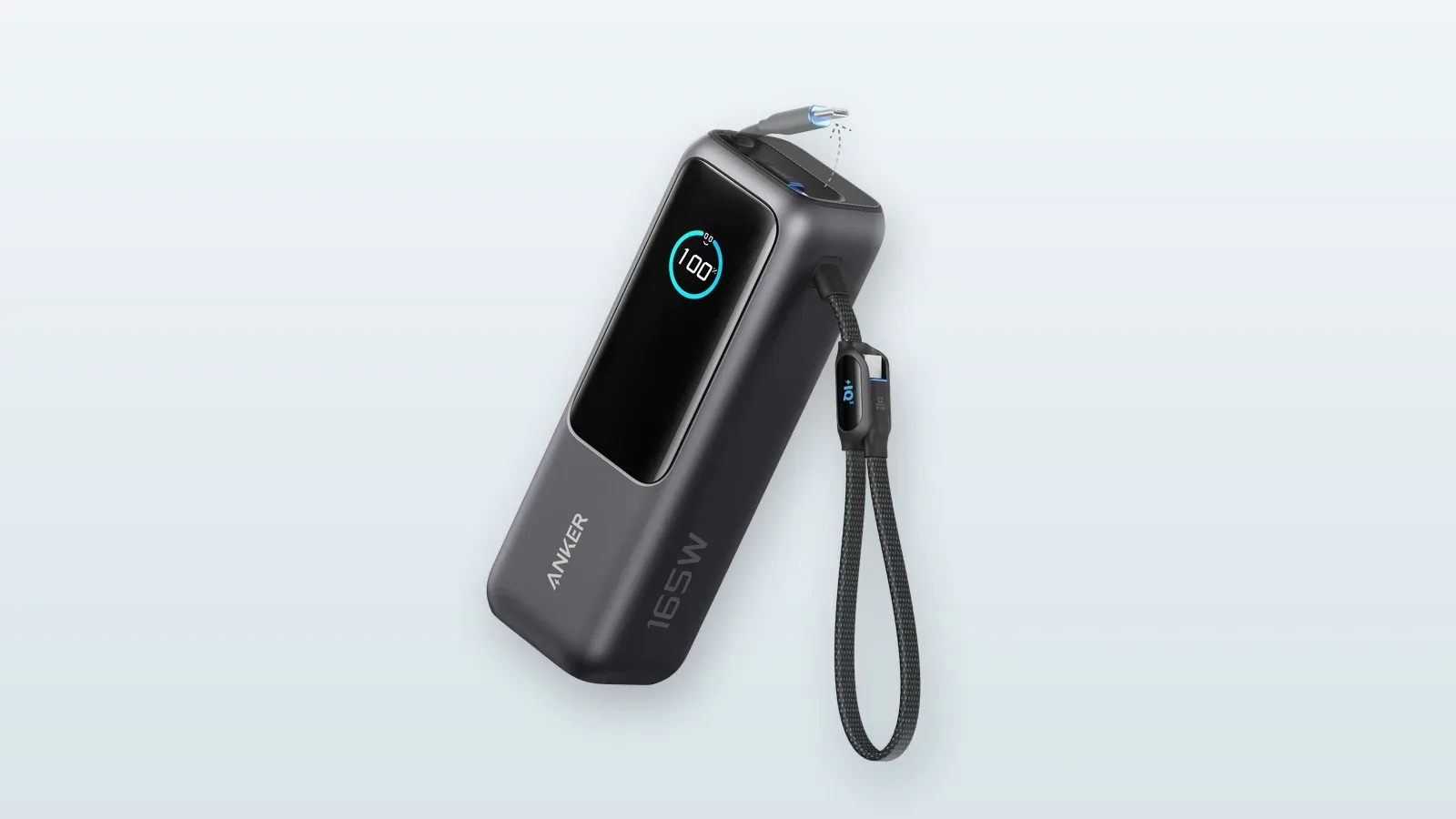
Check three things:
- Output: Can it deliver the power the phone, tablet, or laptop expects?
- Capacity: Is it large enough to matter without becoming a brick nobody carries?
- Ports and cables: Can it connect to the device without another emergency shopping trip?
For air travel, power banks are spare lithium batteries and belong in carry-on baggage, not checked bags. FAA guidance allows typical lithium-ion batteries up to 100 watt-hours without airline approval; larger batteries have additional limits. Check the label and the airline before a trip.
If the real problem is an aging laptop battery, a power bank may be a temporary patch. Battery service or replacement could be the better fix.
5. A USB-C Hub—When the Laptop Is Missing One Specific Port
A hub earns its place when the problem is concrete: no HDMI connection for a classroom display, no SD card slot for a camera, not enough USB ports for a keyboard and storage drive, or no wired network connection where Wi-Fi is unreliable.
Example to compare: Anker 555 USB-C Hub (8-in-1). It is a useful checklist example because it includes HDMI, Ethernet, SD and microSD slots, two USB-A data ports, one USB-C data port, and USB-C power input. Anker says the connected laptop can receive up to 85W because the hub uses some incoming power, and the host USB-C port still needs the right video and charging support.
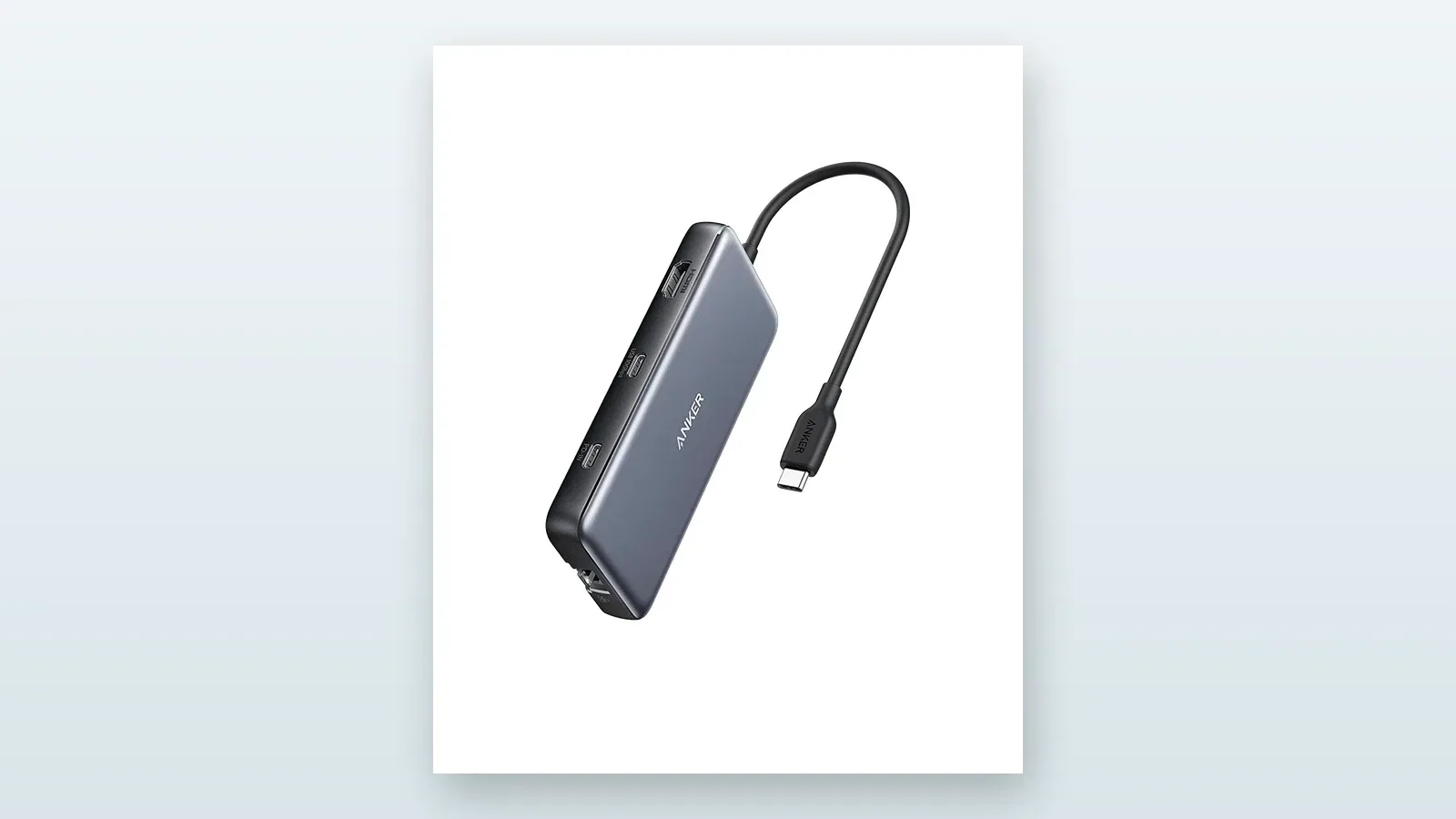
Write down the ports before shopping. “Lots of ports” is not a specification.
Also check whether the laptop's USB-C port supports the feature you want. A connector that accepts charging may not necessarily provide the video output, data speed, or charging passthrough a particular setup needs.
If the hub spends the semester in a drawer because nothing ever plugs into it, it did not earn its spot.
6. A Second Screen—For People Who Already Work Side by Side
This is the idea from Samsung's guide that I find most interesting beyond the obvious laptop-and-earbuds list. A portable display can be genuinely useful for keeping research open beside a paper, following instructions while working in another app, editing a timeline, or teaching from a small temporary setup.
Example to compare: ASUS ZenScreen MB16ACV. It is a 15.6-inch full-HD portable display with a built-in kickstand and a listed weight of 0.9 kilograms. Its USB-C connection is the cleanest option; using USB-A requires a DisplayLink driver, so this is exactly the kind of purchase where checking the laptop first matters.
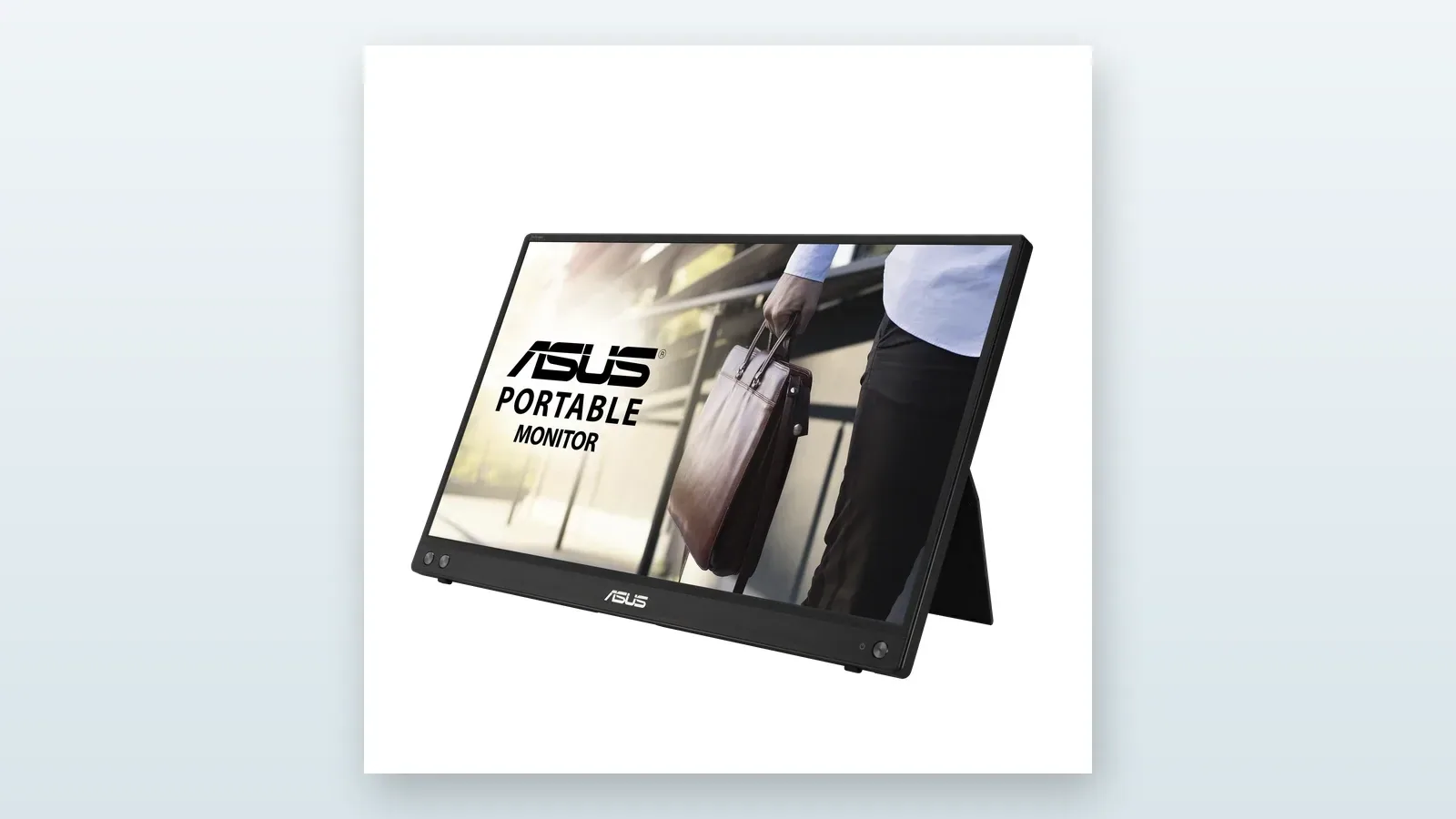
It can also become a thin, expensive object that moves from desk to closet.
Before buying one, try the actual workflow. Spend a week using split-screen mode or a borrowed monitor. If constantly switching windows remains the repeated annoyance, a second screen may earn its place.
Then check how it connects, whether it needs separate power, whether the laptop supports video over USB-C, whether HDMI is required, and whether the stand works at a usable angle. At a permanent desk, a regular monitor may be a better value. For a student who moves every day, weight and cable clutter matter as much as screen size.
7. An Item Tracker—For the Backpack, Keys, or Instrument Case
A small Bluetooth tracker can make sense for belongings that are repeatedly misplaced: keys, a backpack, a camera bag, an instrument case, or luggage for a student traveling to school.
Example to compare: Chipolo POP. It can use either Apple's Find My network or Google's Find Hub network, but not both at the same time. It has a replaceable CR2032 battery and an IP55 rating, which makes it a practical comparison point for keys or a bag—not permission to track a person secretly.
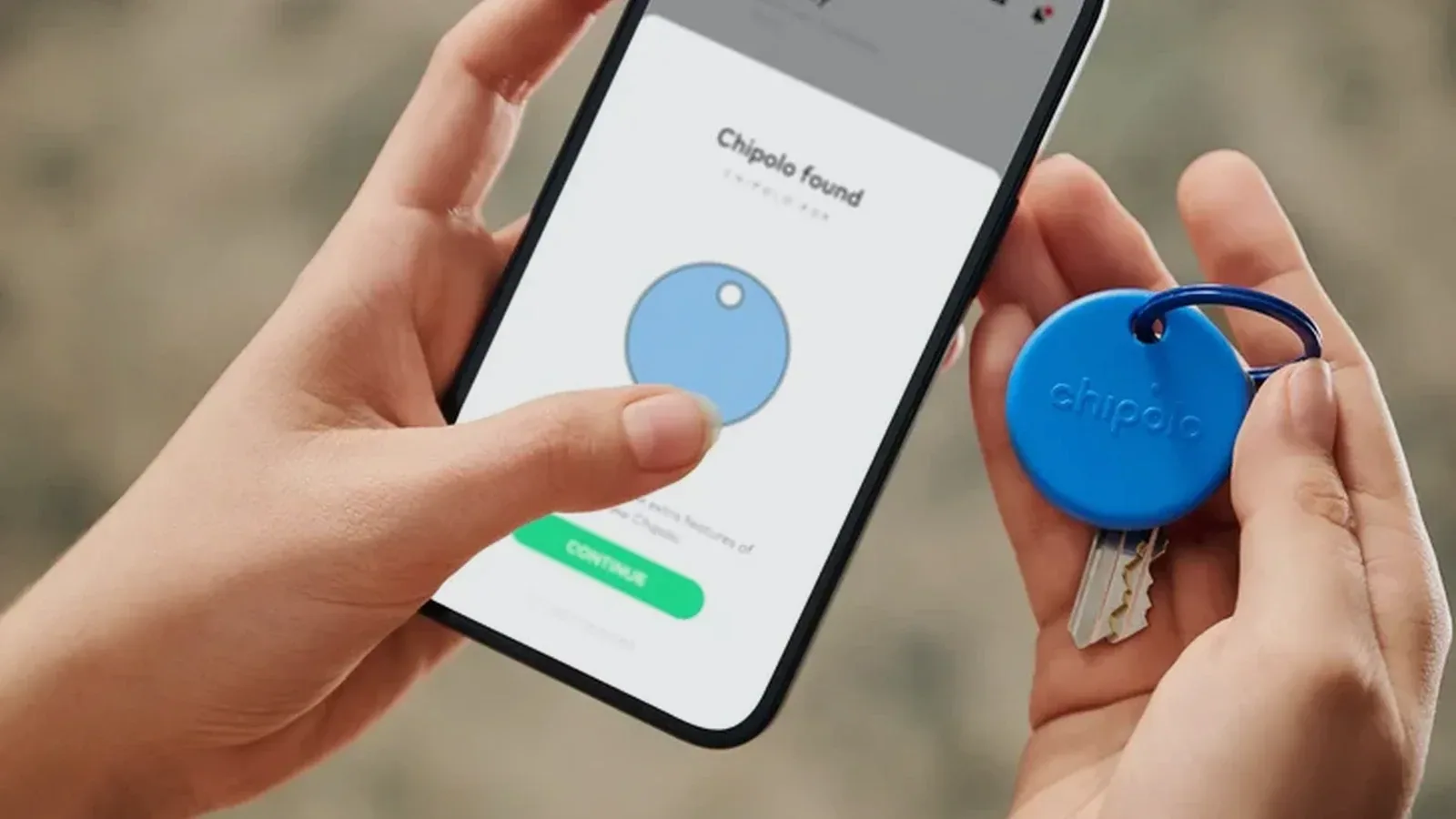
It should not become a secret people-tracking device. Apple and Google support unwanted-tracker alerts across current phones, and both companies provide steps for finding and disabling unknown trackers. Families should be clear about what is being tracked, who can see it, and why.
Check school policies too. A tracker inside a backpack may be reasonable at home and prohibited during testing or in a restricted campus setting.
If the problem is “we lose the same keys every Tuesday,” this is a small fix with a clear job. If the goal is monitoring a person without their knowledge, stop.
What I Would Skip
I would skip any upgrade that cannot answer the three-yes test, especially:
- A new phone just because school is starting. Replace it when the current phone is unreliable, unsupported, damaged, or genuinely unable to do a required job.
- A smartwatch sold as a productivity system. It can help with reminders or activity, but it can also add another charger, distraction, and stream of notifications.
- A portable monitor for an imaginary workflow. Prove the side-by-side need first.
- A giant accessory bundle. One reliable charger, cable, or adapter is better than a pouch full of questionable duplicates.
- Smart appliances presented as study tools. A refrigerator may help a busy household. It still does not belong on the student's supply list.
Try This for Seven Days Before Buying Anything
For one school or work week, keep a note called Tech Friction.
Every time technology slows the day down, write one short line:
- laptop died at 2:30
- could not connect to classroom display
- lost keys again
- switched between research and draft 27 times
- call audio was hard to hear
At the end of the week, count the repeats. The most common annoyance gets the first repair, setting change, borrowed test, or purchase. Everything else waits.
That one-week delay is useful. It turns “back-to-school tech” from a shopping theme into evidence.
Bottom Line
Samsung's guide is a useful reminder of how many products can be attached to the back-to-school season. My list is deliberately smaller and less brand-specific.
Start with the annoyance. Check the rules and compatibility. Buy the smallest fix. Use it long enough to know whether it worked.
If one charger solves the problem, you did not miss out by skipping the watch, refrigerator, and portable television. You won.
Sources
- Samsung: The Samsung Back-to-School Guide—A+ Tech Starts Here, published July 21, 2026; accessed August 14, 2026. This manufacturer newsroom article is the promotional source that inspired the neutral chooser angle.
- Microsoft: What does it mean if Windows isn't supported?, accessed August 14, 2026.
- Microsoft: Windows 11 System Requirements, accessed August 14, 2026.
- Google: Check your Chromebook's update schedule, accessed August 14, 2026.
- USB-IF: Cables and Connectors, accessed August 14, 2026.
- FAA: Batteries Carried by Airline Passengers, accessed August 14, 2026.
- Apple: Detect unwanted trackers, updated February 2026; accessed August 14, 2026.
- Google: Find unknown trackers, accessed August 14, 2026.
Product examples, specifications, and official images were checked on August 14, 2026. These are direct, non-affiliate manufacturer links, and the examples have not been hands-on tested for this article:
- Framework: Framework Laptop 13
- soundcore: Liberty 5
- UGREEN: Nexode Pro 100W 3-Port Charger
- Anker: Laptop Power Bank (25K, 165W)
- Anker: 555 USB-C Hub (8-in-1)
- ASUS: ZenScreen MB16ACV
- Chipolo: POP