
Trust & transparency
Evidence & disclosures
Evidence basis: Manufacturer-supplied evidence. Material claims or demonstrations came from the company responsible for the product and are not independent results.
Based on Google Password Manager and account-security guidance; the 15-minute routine is proposed, not a test across every breach or account.
Sources checked: Aug 20, 2026
Linked references: 5 explicit sources in the article.
The 15-Minute Password Check I’d Do After Any Big Data-Breach Scare
TLDR
The next time a giant data-breach headline shows up, I would not begin by clicking the link in a scary email or promising myself I will replace 147 passwords before dinner.
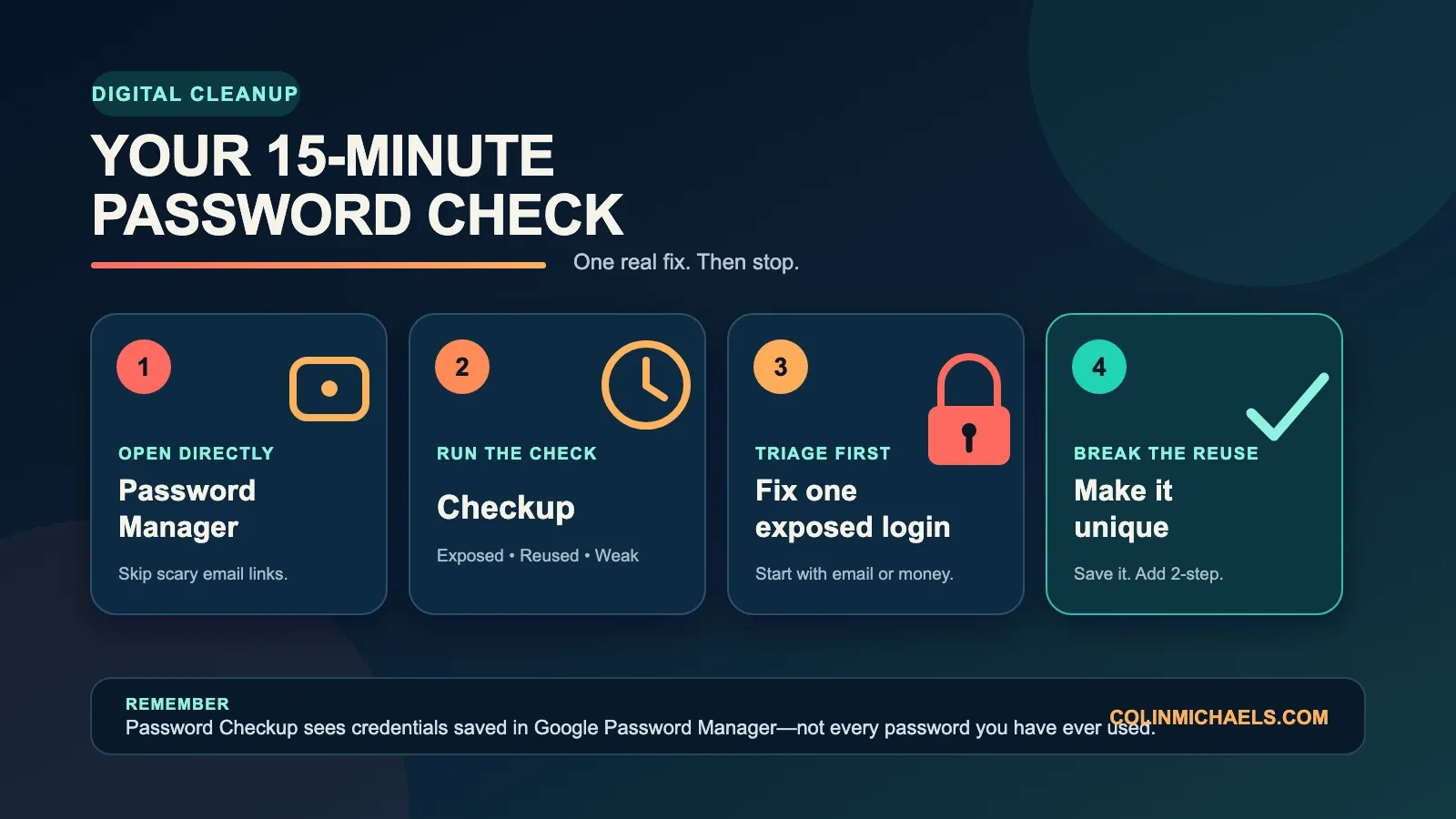
I would open Chrome directly, go to Google Password Manager, select Checkup, and look for passwords marked exposed, reused, or weak. Then I would change one compromised password—starting with an important account—and make the replacement unique.
That does not clean up an entire digital life. It does something better: it turns fifteen minutes of vague worry into one account that is harder to steal.
Another Breach Headline, Another Vague Warning
Every few weeks, it feels like another company announces that customer information escaped into the wild.
The standard advice arrives right behind it: change your password, use a strong password, never reuse passwords, turn on two-step verification, watch for scams, and maybe spend the rest of your natural life inspecting login screens.
All of that can be good advice. It is also a lot to hand somebody at 7:30 in the morning while they are trying to find their keys.
Most people do not need another lecture about being more secure. They need a first move that is small enough to start and useful enough to matter. For people already saving passwords in Chrome or Google Password Manager, Password Checkup is that first move.
What Chrome Password Checkup Actually Checks
Google Password Manager can review the passwords saved in it and flag three kinds of problems:
- Exposed passwords that appear in known breach data.
- Reused passwords that protect more than one account.
- Weak passwords that may be easy to guess.
The boundary matters. This is not a magical scan of every password you have ever created. It checks the credentials saved in Google Password Manager.
If half your passwords live in another password manager, a work browser, a notebook, or the mysterious part of your brain that still remembers a login from 2009, those are outside this check.
Google also says Chrome encrypts your credentials before comparing them with an encrypted list of known breached data. According to its current help page, Google does not learn your username or password during that comparison.
That is useful context, but the practical reason to run the check is much simpler: it gives you a short list instead of a cloud of dread.
My 15-Minute Password Cleanup
Set a timer for fifteen minutes. The goal is not to reach password enlightenment. The goal is to fix one real weakness.
Minute 0-2: Open the Real Tool
On a computer, open Chrome yourself. Go to the three-dot menu, choose Passwords and autofill, open Google Password Manager, and select Checkup on the left.
You can also type passwords.google.com into the address bar. If you are using another browser but your passwords are saved to your Google Account, that direct address can still take you to Password Checkup after you sign in.
I prefer opening the tool directly instead of working from a panicked email that says FIX THIS NOW. A breach story already creates urgency. There is no reason to let an email link choose where that urgency takes you.
Minute 2-5: Look, Do Not Spiral
Let Checkup run and read the categories. If the screen shows a long list, do not turn that number into a personality test. Old password habits are not a moral failure. They are maintenance.
Start with exposed passwords. Reused and weak passwords matter too, but a credential already found in known breach data deserves the first look.
Minute 5-12: Change One Important Password
Choose one compromised account and change it through the real website or app. I would prioritize an account that can unlock other parts of my life:
- Primary email.
- Banking or payment account.
- Work or small-business administration.
- Cloud storage.
- Social media with saved payment information or a large audience.
Use a new password that is long and unique. Let the password manager generate and save it if that is the easiest way to avoid reuse. The important word is unique.
If the same old password protects five accounts, changing it on only one site does not make the other four safe. Each account needs its own replacement as you work through the list.
Minute 12-15: Add One More Layer
If the account offers two-step verification, turn it on. If it offers a passkey and you understand the recovery options, that can also be a useful next step.
Then stop when the timer ends. Seriously. You are allowed to stop.
Write down the next account to fix, schedule another fifteen-minute block, and go back to your life. A security routine people will repeat is more valuable than a heroic cleanup they avoid for six months.
Which Warning Should I Fix First?
Here is the order I would use:
- Exposed and important: Fix it now, especially if it protects email, money, work, or account recovery.
- Exposed and reused: Fix every account using that password, but begin with the most important one.
- Reused: Give each account a different password so one breach cannot unlock several doors.
- Weak: Replace obvious words, keyboard patterns, names, and short passwords with a generated unique password.
This is triage, not a perfect security theory. An exposed password on an abandoned recipe forum is still worth changing or deleting. An exposed password on your main email can affect almost everything else, because email is often where password-reset links go.
What If the Check Says Everything Is Fine?
That is good news, with an asterisk. It means Google did not flag a known problem in the passwords it checked. It does not prove that every account you own is safe, that a brand-new breach has already reached the database, or that you would spot a convincing phishing page.
I would use the remaining time to ask whether important accounts use unique passwords and whether two-step verification is on for email, banking, and business administration. Then I would take the win. Security does not have to produce a red warning to be worth fifteen minutes.
What If I Do Not Use Chrome?
Use the password manager you actually rely on. The useful habit is not loyalty to one browser. It is running the security audit built into your password manager, understanding what it can see, and replacing compromised passwords with unique ones.
Google says people who save passwords in a Google Account can also start Password Checkup at passwords.google.com from another browser. If your passwords are stored somewhere else, follow that provider’s official security-check instructions instead.
Do not move all your passwords into Chrome just to follow one blog post. The best password manager is a reputable one you will actually keep using.
When Fifteen Minutes Is Not Enough
This routine is for cleanup after a breach headline or for regular maintenance. If you see unfamiliar sign-ins, password-reset messages you did not request, changed recovery information, money moving, or messages sent from your account, treat that as an active account problem.
Go directly to the provider’s official account-recovery or security page. Change the affected password, review signed-in devices and recovery information, and secure the email account connected to it. Do not wait for a timer to finish.
And if a password appears in a breach but you no longer use the account, close the account if possible. Digital cleanup sometimes means changing a lock. Sometimes it means removing the door.
The Part That Actually Matters
I like the fifteen-minute version because it respects how normal people live.
Parents are busy. Small business owners are doing six jobs. People helping older relatives are already juggling devices, paperwork, and the sentence, “No, do not give the caller the code they just texted you.”
Telling everyone to overhaul their entire digital life is technically ambitious and practically useless.
Open the real tool. Run the check. Fix one exposed password. Make it unique. Add two-step verification when you can. Come back for the next one later.
One fixed account today beats a perfect password plan that lives forever on tomorrow’s list.
Colin Michaels
Sources and Freshness Note
This guide is based on Google’s official Chrome and Google Account help pages for managing passwords, running Password Checkup, understanding Chrome’s password protection, and responding to compromised accounts. The original source was accessed July 15, 2026, and the steps were rechecked July 16, 2026.
- Manage passwords in Chrome
- How Chrome protects your passwords
- Change compromised passwords in your Google Account
- Secure a hacked or compromised Google Account
Google can change menu names and screen layouts. If the wording in Chrome moves, go directly to Google Password Manager and look for Checkup.
For a useful next step after cleaning up exposed passwords, see What Passkeys Actually Are—and Why They Feel Easier Than Passwords.